Let's settle the closed captions vs. subtitles debate right away. Think of it like this: Closed captions (CC) are a complete script of your video's soundscape, made for people who are deaf or hard-of-hearing. They include dialogue, but also crucial non-speech sounds like [door slams] or [upbeat music].
On the other hand, subtitles are purely for translation. They’re for viewers who can hear the audio just fine but don't speak the language in the video.
Understanding The Core Differences
It’s easy to see why people use the terms interchangeably, but they're built for entirely different needs. Captions are an accessibility feature, first and foremost. Their job is to create an identical viewing experience for someone who can't hear, which means noting speaker changes, sound effects, and musical cues that shape the story.
Subtitles, however, are a localization tool. They're all about breaking down language barriers. If you're a French speaker watching an English movie, subtitles give you the dialogue. They assume you can hear the car chase or the swelling orchestra, so those details are left out.
Closed Captions vs Subtitles at a Glance
To make it crystal clear, let's put them side-by-side. Nailing this distinction is the first step for any creator serious about reaching a wider audience and meeting accessibility standards.
| Attribute | Closed Captions (CC) | Subtitles |
|---|---|---|
| Primary Purpose | Accessibility for deaf and hard-of-hearing viewers | Language translation for hearing viewers |
| Content Focus | Transcribes all audio, including dialogue, sound effects, and music cues | Translates spoken dialogue only |
| Target Audience | Viewers who cannot hear the audio | Viewers who can hear the audio but don't understand the language |
| Typical Language | Same language as the video's original audio | A different language than the video's original audio |
This simple breakdown shows the core function of each. But what happens when you need both? That's where hybrid formats come into play.
If you want to get into the weeds on how these functions can merge, it's worth learning about what are SDH subtitles and how they differ from closed captions. They're an interesting blend of both worlds.
Ultimately, figuring out whether your goal is accessibility or translation will guide every decision you make next. It impacts your workflow, your legal requirements, and how many people can truly connect with your content.
Why Closed Captions Are So Important for Accessibility
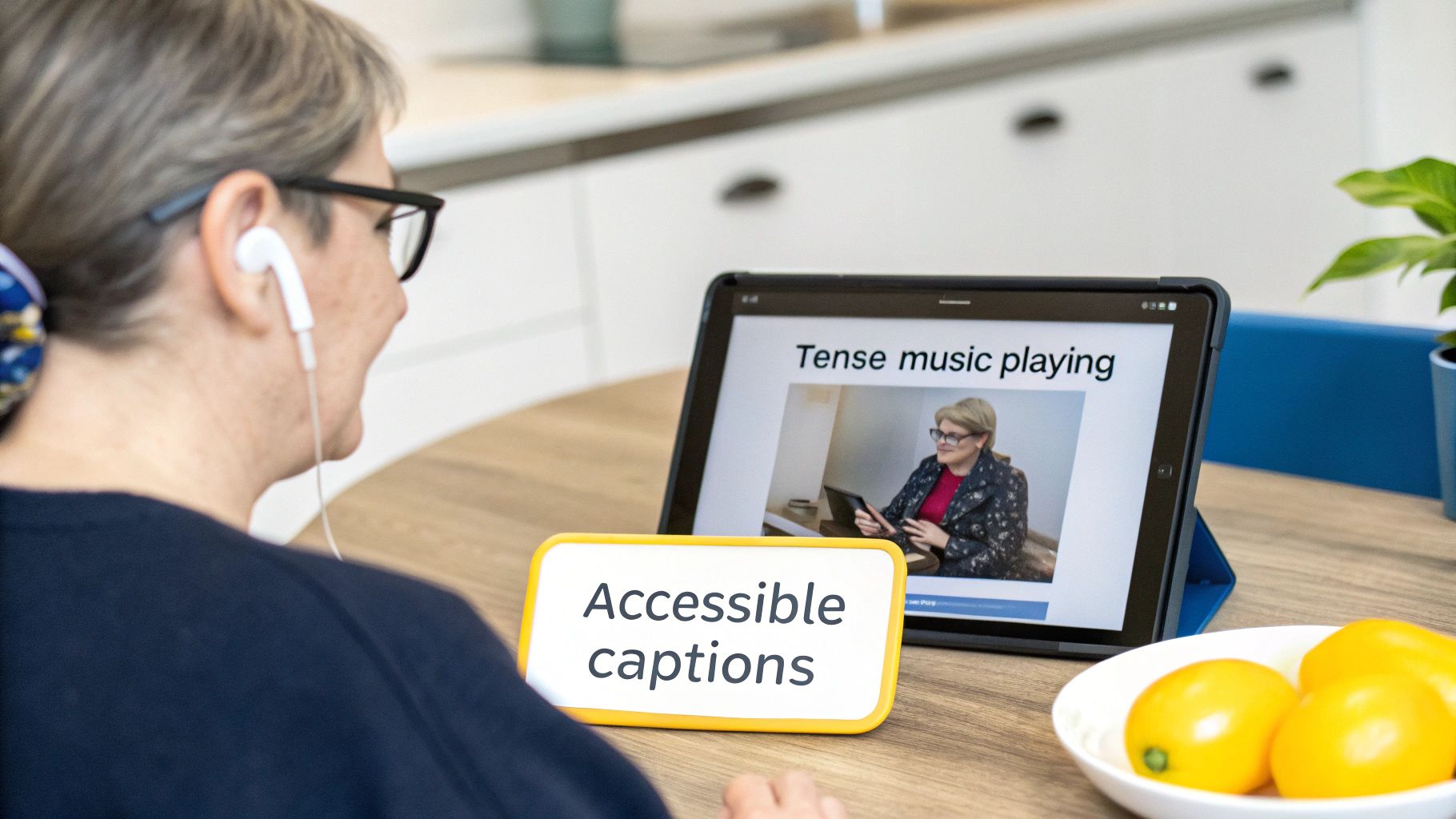
While subtitles are there to help viewers understand another language, closed captions serve a completely different, and fundamental, purpose: accessibility. Their main job is to give people who are deaf or hard of hearing the exact same viewing experience as everyone else. We're not just talking about putting dialogue on the screen; it’s about painting the entire soundscape of a video with words.
This is where the whole "closed captions vs subtitles" discussion moves beyond a simple technical preference and becomes a legal and ethical one. Here in Canada, regulations like the Accessibility for Ontarians with Disabilities Act (AODA) and various CRTC mandates show a serious commitment to making digital content inclusive. If you don't provide proper captions, you're shutting out a huge chunk of your potential audience from your story.
Captions have been a pillar of accessibility for decades. They officially rolled out nationwide in Canada back on September 1, 1979, and have been a standard expectation ever since. Today, with over 5.5 million Canadians living with some form of hearing loss, getting captioning right isn't just a nice-to-have—it's critical under the CRTC's Accessible Communications Regulations.
So, What Makes a Caption Genuinely Accessible?
To create an experience that’s truly equal, closed captions need to include specific details that subtitles almost always leave out. These non-speech cues are everything when it comes to understanding context, emotion, and plot twists. For a really deep dive, you should check out our guide on the full closed captions meaning and all its parts.
The key ingredients for truly accessible captions are:
- Speaker Labels: You need to know who is talking, especially when multiple people are on screen or someone is speaking from off-camera. Think [Sarah] or (NARRATOR).
- Sound Effects: Crucial noises that drive the story forward need to be described. Things like [phone ringing], [tires screeching], or [glass shattering] add vital context.
- Musical Cues: The soundtrack sets the mood, and your captions need to reflect that. Simple descriptions like [tense music playing] or [upbeat pop song begins] make a world of difference.
This level of detail is what elevates a basic transcript into a proper narrative tool. It’s also why the hybrid format SDH (Subtitles for the Deaf and Hard-of-hearing) is so powerful, combining these descriptive elements with translation for truly global accessibility.
The Right Tools for Accessible Content
For any creator, nailing this level of detail requires precision. A generic, auto-generated transcript just won't cut it. This is where having a dedicated tool becomes a game-changer.
Inside TranslateMom, the Studio Editor shows you a visual audio waveform, which lets you perfectly sync a sound effect description to the exact moment it happens. You can visually drag the start and end points of a caption like [door slams] to make sure it appears on screen at the same instant you hear the sound—not a second too late.
This kind of workflow takes you beyond basic transcription and into the realm of real accessible design. It’s how you ensure your content isn't just available to every viewer, but genuinely understandable.
How Subtitles Unlock Global Audience Growth
While closed captions are all about accessibility, subtitles are your passport to the world. Their job is to smash through language barriers, turning your local video into an asset that can connect with viewers anywhere. This is the real difference when you're weighing closed captions vs. subtitles: subtitles are for people who can hear just fine but need the dialogue translated into their own language.
But good translation isn't just about swapping words. It's about localization—making sure your content actually feels right in a new culture. You have to adapt idioms, references, and humour so they land properly. A joke that's hilarious in English might fall completely flat or, worse, be confusing in Japanese without a thoughtful rewrite. That's the difference between a clunky, amateur translation and professional content that truly engages.
For any creator looking to grow, reaching a global audience is a game-changer. As this YouTube creator's guide to revenue points out, more viewers in more countries directly translates to growth.
Mastering the Translation Workflow
To take your content global without burning out, you need a smart and efficient workflow. The idea is to get accurate translations without spending hours manually syncing text to video. Modern tools can do the heavy lifting, letting you focus your energy on the important part: the quality and cultural fit of the translation.
Take a tool like TranslateMom, for instance. The process is designed to be incredibly fast:
- Ingestion: At the New Task screen, upload your video file or paste a link from YouTube, Twitter, TikTok, or Instagram.
- Processing: Select your video's Source Language and the Target Language you want subtitles in.
- Choose Service: Select Translation. The platform automatically creates the translated subtitles, perfectly timed to your video.
In just a few seconds, you're 90% of the way there. The next step is all about refinement, making sure the translation is not just accurate but also culturally on-point. You can dive deeper into the nuts and bolts of this in our guide to subtitling and translation workflows.
The secret to a top-tier translation is being able to compare the original text with the new version, line by line. In TranslateMom's Studio Editor, you can toggle a Split View to see the Original (Source) text alongside your Translation. This makes it dead simple to catch any awkward phrasing or literal translations that miss the mark, so you can tweak the text and make sure it connects powerfully with your new audience.
The Modern Shift in How Viewers Use Captions
The whole closed captions vs. subtitles debate is getting a shake-up because of one simple fact: how we watch video has completely changed. For a long time, captions were filed away as an accessibility tool. Now? They're a mainstream must-have for millions of viewers who have perfect hearing.
This evolution is all about our modern viewing habits. We're watching videos on our phones while crammed onto a noisy bus, letting content play in the background while we multitask, or just keeping things silent so we don't wake up the whole house. In these everyday scenarios, captions aren't just a nice-to-have; they're the only way to actually follow along.
Why Captions Are the New Norm
This isn't just a niche trend; it's a massive behavioural shift, especially with younger audiences. There's a clear generational divide in caption use sweeping across Canadian media consumption. Data shows that around 40% of adults under 45 use closed captions 'often,' while only 30% of those over 45 do the same.
Gen Z is leading the charge, with a staggering 70% saying they use them regularly. A 2022 survey from Carleton University really drives this home: 54% of students said they rely on captions, and 35% use them "always," even though only 7% identified as having a hearing impairment. You can dig deeper into the rise of subtitle use among young adults to see just how widespread this has become.
For creators, the message couldn't be clearer. If you're not providing top-notch, easy-to-read captions, you're deliberately shutting out a huge and growing part of your audience. Captions are no longer an optional extra; they're a fundamental piece of any solid video strategy.
Turning Captions into a Creative Advantage
But this new expectation isn't a chore—it's a huge creative opportunity. Since viewers are actively reading as they watch, the style of your captions can make a real difference in how well your content sticks. Plain, default captions will do the job, sure, but styled, dynamic text can make your videos way more memorable and shareable.
This is especially true on platforms like TikTok and Instagram, where punchy, visually interesting text is baked into the DNA of the content.
Inside TranslateMom's Studio, you can move way beyond basic text. The Style tab gives you control over everything from font family and color to background opacity. Even better, it lets you select presets for "Karaoke" style animations where words are highlighted as they're spoken. This grabs attention and makes your content truly pop in a noisy feed.
When you start treating captions like a design element, you turn a simple necessity into a serious engagement tool. It shows your audience you get how they watch content today, and that can be the difference between a three-second scroll-by and a three-minute watch.
A Creator's Guide to Technical and Workflow Differences
Knowing the theory behind closed captions and subtitles is a great start. But for creators, the real work happens in the edit bay—fiddling with file types, video players, and export settings. This is where it all comes together. Your choices here directly impact how viewers see (or don't see) your text and how your video gets discovered on different platforms.
The main technical decision you'll face boils down to two delivery methods: "soft" captions and "burned-in" captions.
Soft vs. Burned-In Captions
Soft captions (or subtitles) are basically a separate text file that plays alongside your video. Think of it like a script that the video player reads and displays on screen. The big win here is flexibility. Viewers can turn them on or off, change the language, and platforms like YouTube can read that text to better understand and rank your video. Common formats for this are SRT and VTT.
Burned-in captions, also known as open captions, are the exact opposite. They are permanently stamped onto the video frames. They become part of the image itself, so they can't be turned off. This is perfect for platforms like TikTok and Instagram, where videos often start playing on mute. It guarantees your message gets across, exactly how you designed it, every single time.
This screenshot shows you what these choices look like in a real tool.
Downloading an SRT file gives you a soft-caption file, while exporting a new video creates a burned-in version.
Mastering the Workflow from Start to Finish
A solid workflow is everything if you want to produce great captions and subtitles without pulling your hair out. Using a dedicated tool can take this from a tedious technical chore to a simple, creative process.
Let's walk through a typical workflow on a platform like TranslateMom:
- Ingestion (Import): It all starts at the New Task screen. You can drag and drop a video file or just paste a URL from platforms like YouTube or TikTok. (Pro Tip: Press
Fto instantly open the file picker). - Processing (Setup): Tell the tool the video's original language. Then pick your service—either Transcription if you just need same-language captions or Translation for foreign-language subtitles.
- Refinement (The Studio): This is where you perfect your text. The editor shows a visual audio waveform, letting you drag the start and end points for each caption line to sync them perfectly. You can fix any text, add important cues like
[music playing], and make sure the timing is spot on.
A good tool makes your workflow so much faster. In TranslateMom's Studio, the video automatically pauses the moment you click to edit a line of text. No more fumbling with the play/pause button—you can just focus on getting it right. Plus, all your edits are saved automatically to the cloud.
Choosing Your Final Export Format
Once your captions are perfect, the last step is to export them in the right format for where you're posting the video. This is where you make that final call between soft and burned-in. If you need a deeper dive into file prep, our guide on how to convert a text file to an SRT has all the details.
Your export options in a tool like TranslateMom will usually be:
- Download Subtitles (SRT/VTT): This gives you a "soft" subtitle file. It’s the best choice for platforms like YouTube or Vimeo because it lets viewers toggle the text and helps your video get found in searches.
- Burn-in (Export Video): This creates a new video file with the captions permanently "baked" in. This is your go-to for social media, making sure everyone sees your message, even with the sound off.
How to Choose the Right Format for Your Content
So, closed captions or subtitles? The choice really boils down to one simple question: who are you trying to reach, and what do they need from your content? This isn’t just a technical detail; it’s a strategic decision that shapes your entire workflow and determines how inclusive and far-reaching your content can be.
Before you even think about file formats, you need to nail down your main goal. Are you an Ontario-based educator who needs to meet AODA accessibility standards? Or are you a travel vlogger aiming to break into new international markets? Your answer changes everything.
This creator workflow chart maps out the key steps you’ll take, from hitting “import” to the final export.
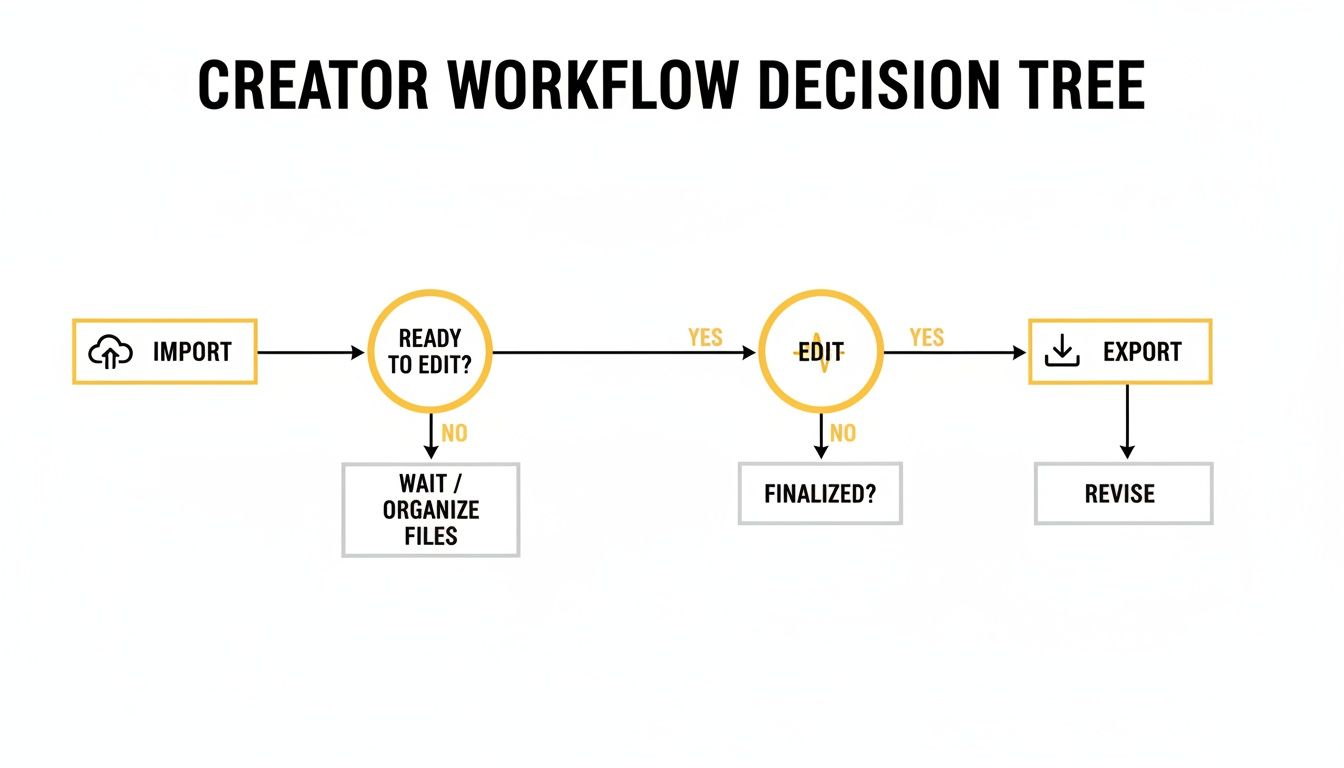
Whether your goal is accessibility or translation, the core process of importing, editing, and exporting is what ensures your audience gets a high-quality experience.
A Practical Decision Framework
Let's walk through a few real-world examples to make this crystal clear.
- For Accessibility (Choose Closed Captions): Picture an online course creator in Canada. To be AODA-compliant, they have to provide captions that cover all dialogue and crucial non-speech sounds, like
[question asked]or[upbeat music]. - For Global Growth (Choose Subtitles): Now, think of a travel vlogger who wants to grow their audience in Latin America. Their focus is pure language conversion. They’d use a service like TranslateMom to get their English dialogue accurately translated into Spanish subtitles.
- For Language Learning (Choose Both): A language teacher could use a hybrid approach. With a tool like TranslateMom’s Dual Language Mode, they can display both the source language and the translation stacked on top of each other in the final video, which is a fantastic learning aid for students.
Ultimately, your audience’s needs should be your north star. It's fascinating how the purpose of captions in Canada has grown beyond just accessibility. A study found that an incredible 99% of post-secondary students find them helpful for learning, and over 70% of students with no hearing impairments use them regularly. You can read more about the impact of captions in Canadian universities.
In TranslateMom, this decision is the first step. On the New Task screen, you choose your Service—either Transcription for same-language captions or Translation for multilingual subtitles. This one choice configures your entire project to ensure the final output is perfectly aligned with your goal.
Frequently Asked Questions
Digging into the world of captions and subtitles always brings up a few common questions. Here are the straight answers to what creators usually ask.
Can I Use Subtitles Instead of Closed Captions for Accessibility?
Short answer: no. It's a common mistake, but using standard subtitles for accessibility isn't just a bad idea—it often fails to meet legal requirements.
Subtitles are built for one job: translating spoken dialogue. They leave out all the non-speech audio cues that viewers who are deaf or hard-of-hearing need to follow along. To be truly compliant with regulations like Canada's AODA, you need proper closed captions. That means including speaker labels and descriptions of important sounds, like [phone ringing], to provide an equal experience for every viewer. In a tool like TranslateMom, you achieve this by selecting the Transcription service and then manually adding these descriptive elements in the editor.
What Are SDH Subtitles?
Think of SDH as the best of both worlds. The acronym stands for "Subtitles for the Deaf and Hard-of-hearing," and it’s a powerful hybrid format.
SDH files merge the translation function of subtitles with the detailed audio descriptions of closed captions. So, an SDH file not only translates the dialogue but also includes those crucial non-speech cues, like [tense music playing]. You’ll often find them on Blu-rays or on digital platforms where traditional CC tech isn't supported, making them a fantastic tool for taking your accessibility global.
How Do Captions and Subtitles Improve Video SEO?
Both are goldmines for your video's search engine optimization (SEO). When you upload a caption or subtitle file (like an SRT), you’re essentially handing search engines a full, text-based transcript of your video.
This gives their crawlers a ton of keyword-rich context to understand what your content is about, helping you rank for all the right search terms. Even better, adding multilingual subtitles opens up your content to entirely new parts of the world. A video with Spanish subtitles, for instance, can suddenly start ranking in search results for Spanish-speaking users, instantly expanding your potential audience.
With TranslateMom, you can just select Translation as your service to automatically create these SEO-boosting subtitle files for any language you need.
Ready to make your content accessible and global? TranslateMom provides a powerful Studio environment to create perfect captions and subtitles in minutes. Start for free and see how easy it is to reach a wider audience.