Turning a simple TXT file into a polished SRT subtitle file is a game-changer for anyone working with video. It's the step that takes a plain script and transforms it into a perfectly timed caption track that syncs right up with your video's audio.
Think of it this way: a TXT file is just the raw dialogue, but an SRT file is the full director's cut, complete with cues telling the video player exactly when to show each line of text.
The Real Value of an SRT File
A plain text file is your script before rehearsals. It has the words, but none of the timing or delivery instructions. An SRT file, however, is the final, performance-ready version for the screen. It elevates your content, making it professional, accessible, and way more engaging.
Before we get into the "how-to," let's quickly compare the two.
Key Differences Between TXT and SRT Files
| Feature | TXT File | SRT File |
|---|---|---|
| Content | Plain text only (dialogue) | Text, sequential numbers, and timestamps |
| Formatting | No special formatting | Strict format: HH:MM:SS,ms --> HH:MM:SS,ms |
| Functionality | Stores text; not video-compatible | Displays synchronized captions in video players |
| Complexity | Extremely simple | Requires precise structure and timing |
This table really just scratches the surface. The structured nature of the SRT file is what gives it all its power.
Why Bother Converting? Accessibility and Reach
First and foremost, turning a TXT into an SRT is a massive win for accessibility. Subtitles open up your content to viewers who are deaf or hard of hearing.
But it goes way beyond that. Think about how people consume content these days. A staggering 85% of social media users watch videos with the sound off. If you don't have captions, your message is completely lost on them. If you want to learn more, we've got a great piece that explores the meaning of closed captions and their impact.
A Hidden Bonus: SEO and Engagement
Here’s something a lot of creators miss: search engines can't watch your videos, but they can absolutely read text. An SRT file acts as a keyword-rich transcript that Google can crawl and index, making your video much more discoverable.
By giving search engines a full text version of your video's audio, you're handing them a roadmap to understand, index, and rank your content. It’s a huge, often-overlooked SEO boost.
This isn't just a niche trick; it's part of a massive industry trend. The global language services market hit USD 8.4 billion in 2024, and a big chunk of that growth comes from streamlining workflows for subtitling film, corporate videos, and streaming content. Efficiently converting TXT to SRT is right at the heart of this, showing how a simple file conversion is part of a much bigger technological and economic shift.
The Fast Lane: Using an AI-Powered Converter for Quick Results
Let's be real: manually creating subtitles is painstakingly precise, but it's also incredibly slow. If you're a content creator who needs to get SRT files from your text transcripts quickly and accurately, AI-powered tools are your best friend. These platforms chew through the tedious work of syncing text to audio, shrinking a task that could take hours into just a few minutes.
A great example of this in action is a professional-grade tool like TranslateMom. It’s built to be more than a simple converter; it’s a complete subtitling workflow that starts the moment you have a video file. You kick things off at the New Task screen by either uploading your video directly or just dropping in a link from places like YouTube or TikTok.
Once your video is loaded, the AI takes over. You’ll just need to tell it the source language and select the "Transcription" service. This is the magic step where it automatically generates a text transcript of your video's audio, which becomes the foundation for your new SRT file.
Fine-Tuning Your Subtitles in the Studio Editor
This is where a solid AI tool really shines. TranslateMom’s Studio Workspace, for instance, provides an intuitive editor that lets you polish the auto-generated text and timings to perfection.
- The Subtitle Editor: Need to fix a typo or rephrase something? Just click on any line of text. The video player automatically pauses, so you can focus on the edit without fumbling to find your spot again.
- The Visual Waveform: This feature is a total game-changer. Instead of just guessing at timestamps, you get a visual map of the audio. You can literally drag the start and end points of each subtitle to line them up perfectly with the spoken words and natural pauses.
That visual approach completely removes the guesswork from timing. You're no longer just staring at numbers on a screen; you're interacting directly with the audio itself, making sure every caption pops up and disappears at the exact right moment.
Knowing when you need a simple transcript versus a fully synchronized subtitle file is a key part of the process. This handy visual shows the typical workflow for creating video content.
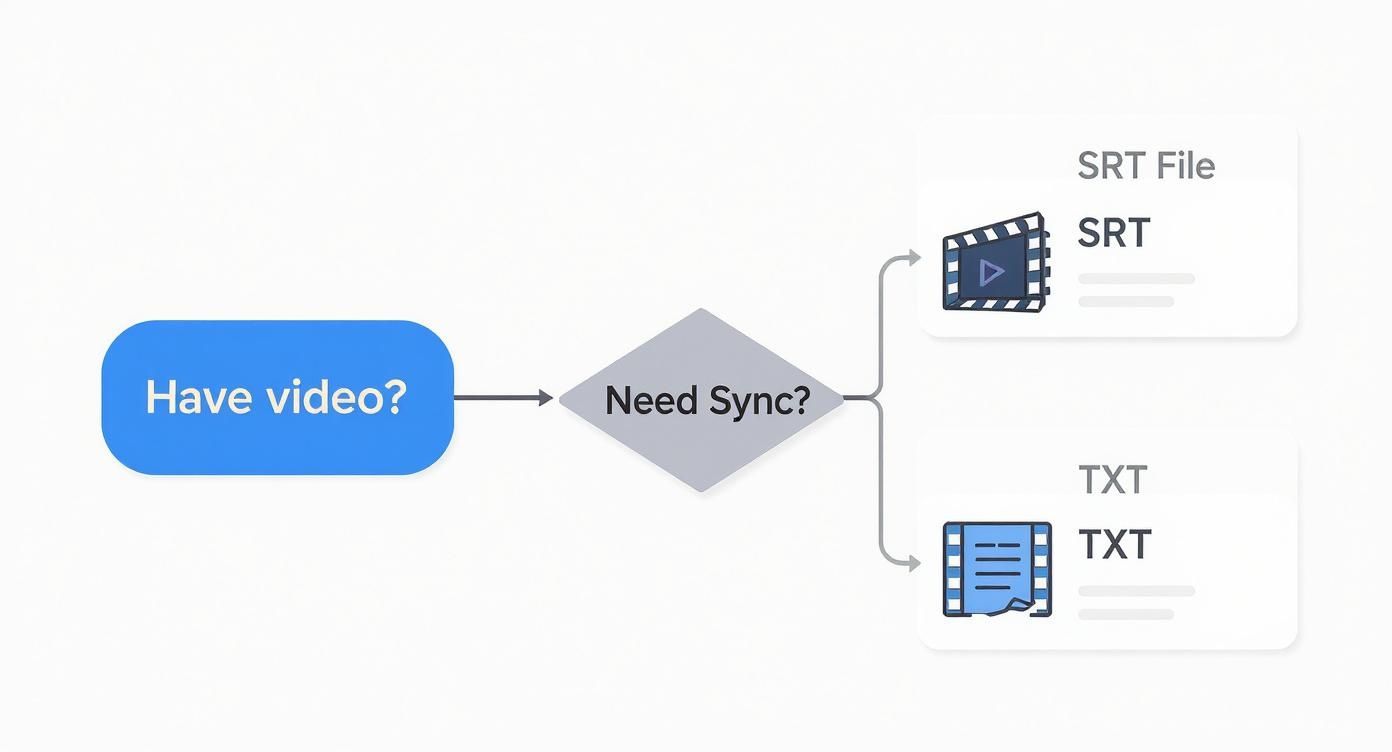
As the flowchart illustrates, if your goal is to have captions that sync up with a video, the SRT file is what you need. A simple TXT file, on the other hand, is all you need for a non-timed script.
Exporting Your Final SRT File
After you've made all your tweaks and the subtitles look perfect, getting them out is the easy part. In TranslateMom, you just head over to the export options and choose Download Subtitles. From there, you pick the SRT format, and the platform instantly generates a perfectly structured, ready-to-use file. This one-click export means you don't have to worry about all those pesky formatting rules like sequence numbers or timestamp syntax.
The move toward tools like this is happening fast, especially in content-heavy markets. Take California, for example, where videos with proper subtitles see a 40% higher view-through rate. For creators trying to boost engagement and accessibility, AI subtitle converters are becoming essential. If you're curious about how AI is being used in other advanced text processing applications, you might find lunabloomai's AI solutions interesting. At the end of the day, using an AI-powered converter isn't just about being faster; it's about producing a professional-quality result that gives your viewers a much better experience.
Exploring Free Online Converters and Software
While professional tools deliver speed and precision, sometimes all you need is a fast, no-frills converter txt to srt for a one-off project. This is where free online converters and desktop software really shine. They're perfect for creators on a budget or anyone who only needs to generate subtitles occasionally.
Web-based converters are incredibly handy—no installation needed, just upload your TXT file and get a downloadable SRT moments later. The convenience is undeniable, but it often comes with a few strings attached.
Many free tools have file size limits, which can be a real headache for longer videos. More importantly, data privacy is a legitimate concern when you're uploading content to a third-party server. If your material is sensitive, you might want to think twice.
Key Considerations for Free Converters
When you're picking a free tool, it's smart to weigh the good against the bad. Here’s what I always look for:
- User Interface: Is it dead simple? A clean interface means you’re in and out in seconds with no learning curve.
- Privacy Policy: It's worth a quick scan of their privacy terms. Find out if they store your files and for how long.
- Features: Do you just need a basic conversion, or are you hoping to tweak the timing? Most free tools are pretty bare-bones.
For most people, the main draw of free converters is how fast they are. They solve one problem right now, but don't expect the advanced editing and syncing features you'd find in a dedicated subtitle editor.
Desktop Software for More Control
If you need more power and want to keep your files on your own machine, desktop apps like Subtitle Edit are a fantastic choice. These programs are usually free and pack a much bigger punch than their online counterparts.
With desktop software, you’re not just converting files. You can visually sync subtitles to a video’s audio waveform, run automatic error checks for common formatting mistakes, and even translate subtitles. This kind of control is ideal if you’re producing high-quality, precise captions on the regular.
The only real downside is the learning curve. These tools can feel a bit overwhelming at first. For creators already working inside a video ecosystem, it’s often easier to stick with an integrated solution. For instance, if you're pulling content from online platforms, our guide on how to download YouTube subtitles might help streamline your workflow.
Understanding the broader landscape of conversion tools, including specialized options like EPUB converter and translator tools for different media, can also provide valuable context. In the end, choosing between a quick online tool and robust software comes down to your project's complexity and how often you're doing this kind of work.
Sometimes, you just need to get your hands dirty.
Whether you're tweaking a single messed-up line in a subtitle file or building captions from scratch for a quick video, knowing how to create an SRT file manually is an incredibly useful skill. It takes the mystery out of the format and gives you the power to fix almost any subtitle problem that comes your way.
The best part? An SRT file is nothing more than a plain text file with some specific rules. You don't need any fancy software—a basic text editor like Notepad on Windows or TextEdit on a Mac is all you need to get the job done.
The whole system is based on simple "blocks" of text, and each block has four key parts. Once you get the hang of this basic structure, you can put together a perfectly functional SRT file.
Understanding The SRT Block Structure
Every caption you see on screen is defined by its own numbered block. Think of each one as a cue card telling the video player what to show and when. To work properly, every block needs to have these four parts, in this exact order.
Let's break down the components of a single subtitle block.
Anatomy of an SRT File Block
| Component | Example | Description |
|---|---|---|
| Sequence Number | 1 |
This is just a simple counter that keeps track of the subtitle blocks. It has to be a whole number, starting at 1 and going up with each new caption. |
| Timestamp | 00:00:05,250 --> 00:00:08,100 |
This is the most important part. It tells the player exactly when the text should appear and disappear. The format is HH:MM:SS,ms (Hours:Minutes:Seconds,milliseconds). |
| Subtitle Text | Hello, and welcome to our video! |
This is the actual text that will pop up on the screen. For readability, it’s best to keep it to one or two lines. |
| Blank Line | (an empty line) | A single empty line separates one block from the next. This part is mandatory; it’s how the player knows a new subtitle block is starting. |
If you miss any of these pieces, especially that blank line, the file will break. The timestamp format is also incredibly picky, which is where most people run into trouble.
Getting The Timestamp Right
The most common reason a manually created SRT file fails is a wonky timestamp. It has to follow the HH:MM:SS,ms format perfectly.
Here's a crucial detail that trips up a lot of people: the separator for milliseconds must be a comma (,), not a period (.). Using a period is a classic mistake and will make most video players reject the file outright.
Pro Tip: When you're setting your timestamps, think about a natural reading speed. I usually aim to keep a caption on-screen for at least 1.5 seconds but no more than 6 seconds. This stops your viewers from feeling rushed and prevents text from lingering awkwardly after the dialogue has moved on.
For instance, a complete two-block SRT file would look just like this in your text editor:
1 00:00:10,500 --> 00:00:12,800 This is the first line of subtitles.
2 00:00:13,200 --> 00:00:15,600 And this is the second line.
After you’ve typed out your subtitles following this structure, just save the file. In the "Save As" dialogue box, name your file with the .srt extension (like my-awesome-video.srt) and—this is important—set the encoding to UTF-8. This ensures any special characters or symbols you've used will show up correctly.
This manual approach gives you total precision, which is essential if you want to properly learn how to add subtitles to a video for any platform. It also gives you the foundational knowledge to fix any weird issues a converter txt to srt tool might spit out.
Advanced Automation with Python and FFmpeg
For those of us who live in the command line or just love the power of a good script, automating the converter txt to srt process is where the real magic happens. When you move past web tools and manual editors, you gain incredible flexibility. You can process huge batches of files, build subtitling right into your own apps, and have total control over the final product. For this kind of work, Python is a perfect fit with its straightforward syntax and amazing libraries.
Think about it: you’ve got a plain text file, maybe script.txt, where every line is meant to be a subtitle. Instead of manually timing each one, you can whip up a quick Python script to read the file, assign timestamps automatically, and spit out a perfectly formatted SRT.
The basic idea is to loop through each line of your text, create a timestamp with a consistent duration (say, three seconds per line), and write everything out in that classic SRT block format.
Building a Simple Python Converter
Let's get practical. A basic script would start by opening your source TXT file for reading and a new SRT file for writing. From there, you just need a couple of variables to keep track of the subtitle number and the start time.
For every line in your text file, your script would:
- Bump up the sequence number.
- Figure out the end time by adding a set duration to the start time.
- Format both timestamps into the
HH:MM:SS,msstructure. - Write the sequence number, the timestamp line, the subtitle text, and a blank line to your new SRT file.
- Finally, set the next subtitle's start time to the current one's end time.
This method is fantastic for creating quick, evenly-paced subtitles from a simple transcript. Best of all, you can just change one variable—the duration—to make the captions appear faster or slower. It gives you precise, programmatic control over the whole experience.
Merging Subtitles with FFmpeg
Once your script has generated the SRT file, the next logical step is to merge it with your video. This is where FFmpeg, the command-line powerhouse for all things multimedia, steps in.
With just a single line in your terminal, you can "burn" the subtitles directly into the video file, making them a permanent part of the picture.
The command couldn't be simpler:
ffmpeg -i input_video.mp4 -vf "subtitles=input_subtitles.srt" output_video.mp4
All this does is tell FFmpeg to use your original video (input_video.mp4) and apply your SRT file (input_subtitles.srt) as a video filter, creating a brand new video file with the captions baked in.
By chaining a Python script with an FFmpeg command, you've just built a fully automated pipeline. This is a game-changer for processing hundreds of videos without clicking a single button—a common task in any large-scale content production workflow.
Troubleshooting Common Conversion Problems
Even the best tools can hit a snag when you're trying to convert a TXT file into a perfectly timed SRT. It happens. You might be using a slick automated converter or patiently building the file by hand, but running into issues like overlapping timestamps, sync problems, or funky-looking text characters is just part of the process.
The good news? Most of these headaches are surprisingly easy to fix.
One of the most common frustrations is subtitle drift. This is when your captions show up noticeably too early or way too late, completely out of sync with the speaker. It usually means the original transcript didn't quite line up with the video's audio track from the get-go. Going back to fix every single timestamp manually is a nightmare. Don't do it.
A much better approach is to use a tool with a visual editor. Inside a platform like TranslateMom, you can pull your video and subtitles into the Studio Workspace and see the audio waveform laid out right in front of you. This lets you visually drag the start and end points of each subtitle to line up perfectly with the dialogue. What was once a frustrating guessing game becomes a quick, precise fix.
Fixing Garbled Text and Encoding Errors
Ever opened an SRT file only to find a bunch of weird symbols and gibberish instead of actual words? That's almost always an encoding problem. For an SRT file to display all characters correctly—especially accents or characters from other languages—it must be saved with UTF-8 encoding.
If your converter spat out a file full of junk characters, the fix is usually pretty simple:
- Open that SRT file in a basic text editor like Notepad on Windows or TextEdit on a Mac.
- Find the "Save As" option, usually under the "File" menu.
- In the save window, look for an "Encoding" setting and make sure you select UTF-8.
- Save the file, replacing the old one. That one little change almost always clears up any garbled text issues instantly.
Another classic error is timestamp overlap, where one subtitle's end time bleeds into the next one's start time. Most video players will just reject a file with this issue. A good subtitle editor will automatically flag these overlaps for you, so you can quickly adjust the timing of the offending lines without having to hunt them down yourself.
The need for clean, reliable subtitles is only getting bigger. The global subtitle market is on track to hit nearly USD 0.76 billion by 2033, all because more content needs to be accessible and multilingual. This really highlights why tools that automate the TXT to SRT process are so valuable—they can cut down processing time by up to 75%. This is a huge deal for meeting accessibility needs, like for the 9.7% of Californians who have hearing disabilities and depend on accurate captions. You can explore more data about the growing subtitle market and what's driving it.
Once you know what to look for—sync drift, encoding errors, and timestamp overlaps—you can diagnose and fix just about any problem a converter txt to srt throws your way and get your subtitles looking flawless.
If you're looking for a smooth workflow that helps you sidestep these issues from the start, give TranslateMom a try. Its AI-powered transcription combined with the intuitive Studio Editor and visual waveform makes creating and perfecting SRT files a breeze. Visit TranslateMom to get started.