So, what exactly is "converting MP4 to text"? Simply put, it's the process of pulling the audio from your video file and turning it into a written transcript. Most of the time, this is handled by automated AI transcription services that can quickly turn spoken words into a clean, editable document.
Think of it as more than just a script. It’s a powerful tool that unlocks a ton of potential for your content.
Why Converting MP4 to Text Is a Content Game Changer
Turning your video's audio into text is genuinely one of the smartest moves you can make to get more eyes on your work. It opens up new avenues for discovery, accessibility, and repurposing that video on its own just can't touch. For any creator, this is a foundational step toward building a stronger content strategy.
Boost Your Discoverability with SEO
Search engines like Google are great at reading, but they can't "watch" your videos to figure out what they're about. When you transcribe your MP4 and post that text alongside the video, you're essentially handing them a word-for-word map of your content.
This text is packed with keywords and phrases that search engines can index, helping you rank higher and pull in more organic traffic. I've seen YouTubers transcribe their entire back catalogue and get a huge bump in views, not from YouTube's algorithm, but from people finding their videos through a simple Google search.
Broaden Your Audience with Accessibility
A text version of your video immediately makes it available to a much larger audience. This includes people who are deaf or hard of hearing, not to mention the millions of us who watch videos on our phones with the sound off.
Subtitles and captions aren't just a nice-to-have anymore; they're essential. Providing text alternatives ensures everyone can get your message, which helps build a more inclusive community around your brand.
The market reflects this shift, too. The U.S. transcription market was valued at $30.42 billion and is expected to hit $41.93 billion by 2030. This boom is all thanks to the explosion of video and the growing need for accessibility. To really dig into this, you should explore the power of AI video captioning and what it means for creators today.
Streamline Content Repurposing
A transcript is an absolute goldmine for repurposing your content. Forget re-watching hours of video to find that one perfect quote—now you can just scan a text document in seconds.
Once you have that transcript, you can easily:
- Write Blog Posts: Take a key topic from your video and flesh it out into a full-length article.
- Create Social Media Updates: Pull out snappy quotes, stats, or tips for quick posts on Twitter or Instagram.
- Develop Newsletters: Whip up a summary of your video's main points for your email list.
- Build Educational Materials: Turn a how-to video into a printable guide or a course lesson.
This approach lets you get the most out of every single video you create. It saves you a ton of time and keeps your content fresh across all your channels.
Choosing Your Transcription Method
Before you jump into converting your MP4 to text, you have a big decision to make: how are you going to do it?
There are really three main paths you can take, and each comes with its own trade-offs in speed, cost, and accuracy. What works for a legal deposition won't be the right fit for a quick YouTube video. It all comes down to your budget, deadline, and how perfect the final text needs to be.
Let’s break down your options.
The Three Paths to a Transcript
The DIY Route: Manual Transcription
This is exactly what it sounds like—you, a pair of headphones, and a lot of typing. You play the video, pause, type, rewind, and repeat.
The upside? You can achieve 100% accuracy. You know the context, the speakers, and the niche terminology better than anyone. The downside is the massive time commitment. A good rule of thumb is it takes about four hours of work to transcribe just one hour of clear audio. For most creators, that's a serious workflow killer.
The Smart Route: Automated AI Services
This is where tools like TranslateMom come in. You just upload your MP4 file, and an AI model does the heavy lifting, turning it into text in minutes. As a browser-based tool, you don't need to install anything; you simply upload a file or paste a link to get started.
Speed is the massive win here. That four-hour manual job? An AI can often knock it out in under 10 minutes. Modern AI tools are surprisingly good, often hitting over 95% accuracy on clear audio. You'll probably still want to do a quick proofread to catch any weird spellings of names or industry jargon, but it’s a tiny fraction of the effort. It’s the perfect balance of speed, cost, and quality for most projects.
The Pro Route: Professional Human Transcription
When you need flawless accuracy and don't have the time to do it yourself, you can hire a professional transcriber.
These are trained experts who will produce a polished, near-perfect transcript. This is the go-to option for legal, medical, or academic content where every single word has to be right. But that level of quality comes at a price. It's the most expensive option by far, and you can expect to wait a day or more to get your file back.
To help you visualize the differences, here’s a quick comparison of how these methods stack up.
Comparing Video Transcription Methods
Choosing the right transcription method boils down to balancing your resources—time and money—against your quality needs. The table below breaks down the typical performance of each approach.
| Method | Average Speed | Typical Cost | Accuracy Rate | Best For |
|---|---|---|---|---|
| Manual (DIY) | 4-6 hours per audio hour | Free (your time) | Up to 100% | Short clips, niche jargon, or when you have zero budget. |
| AI Service | 5-10 minutes per audio hour | Low (often subscription-based) | 95%+ (on clear audio) | Content creators, marketers, podcasters, students. |
| Human Service | 24-48 hours | High (per-minute pricing) | 99%+ | Legal, medical, academic, or high-stakes corporate use. |
As you can see, each method has a clear purpose. While manual work is free, the time cost is enormous, and professional services, while accurate, are often too slow and expensive for day-to-day content creation.
For a deeper dive, our guide to the best transcription tools of 2025 breaks down the top services and what makes them tick.
For most content creators, podcasters, and marketers, an AI-powered service is the clear winner. You get a highly accurate draft in minutes that you can quickly polish yourself. It’s a workflow that respects your time and your standards.
Your Workflow for AI Video Transcription
Alright, let's get practical. Knowing the theory is one thing, but having a smooth workflow is what actually saves you time when turning an MP4 into text. Using a solid, browser-based tool like TranslateMom breaks the whole thing down into a few straightforward steps, from getting your file in to polishing the final output. The real goal is to get a highly accurate draft fast, so you can spend your energy on the final touches.
This quick visual shows the different routes you can take to transcribe an MP4, from the old-school manual grind to much faster professional tools.
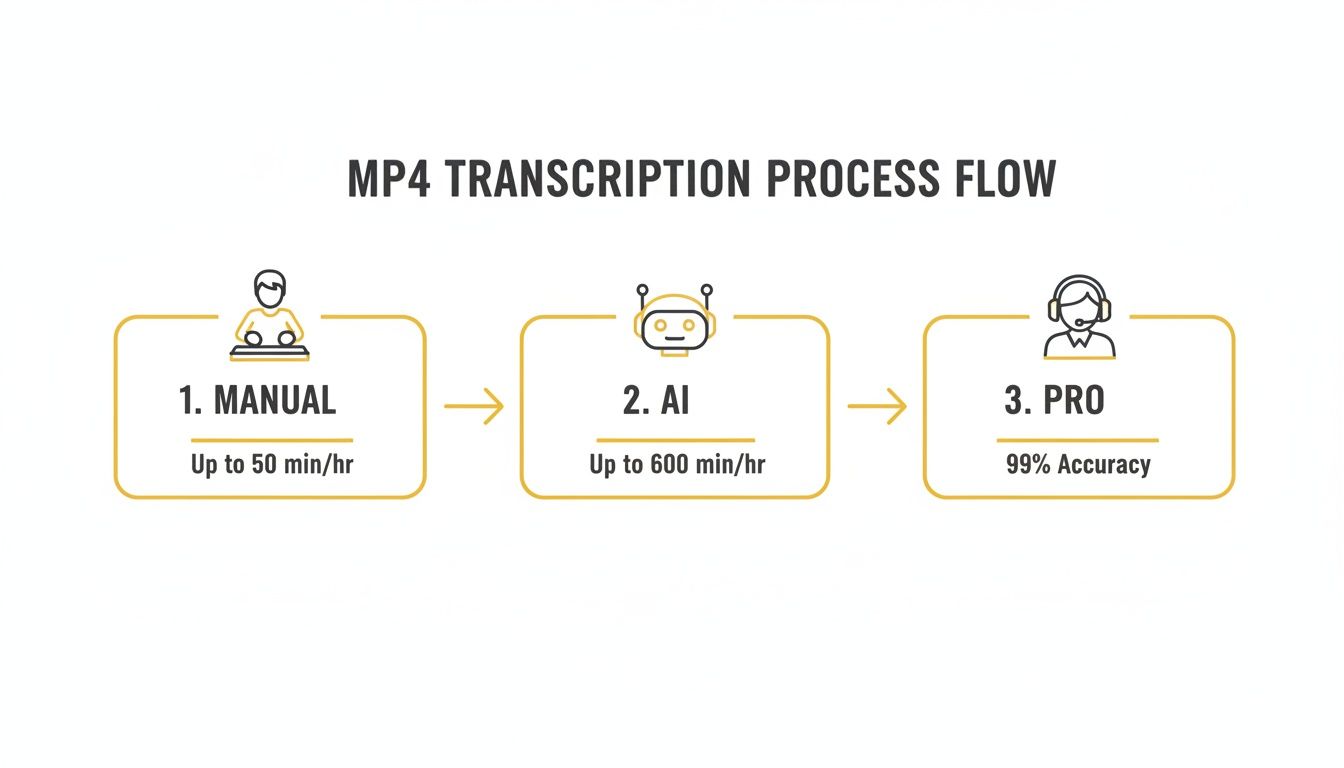
As you can see, the speed boost you get from AI and dedicated tools is massive. For anyone creating content regularly, it's pretty much a no-brainer.
Getting Your Video Into the System
The first piece of the puzzle is just getting your video loaded up. This part needs to be dead simple, because your files are probably scattered everywhere.
On a platform like TranslateMom, heading to the New Task screen gives you a couple of clean options:
- Direct File Upload: You can just drag and drop your MP4 file right into the browser. If you're a keyboard person, hitting the
Fkey on that screen pops open your file explorer instantly. - Link Import: Is your video already live on YouTube, TikTok, or X (Twitter)? No problem. Just paste the URL, and the platform will pull the video in for you.
Once your video is loaded, you just need to tell the system what it's working with. You’ll set the Source Language of the audio and then choose the Transcription service. This tells the AI which language model to use, which is key for getting the best possible accuracy right out of the gate.
Mastering the Studio Editor
After the AI does its magic, you'll find yourself in the "Studio" workspace. This is your command centre for editing the transcript and where you'll turn a pretty good draft into a perfect, polished document. A great editor is so much more than a text box; it’s designed to make you fast and precise.
Typically, the screen is split into a few key zones. You’ll have a video player that shows you exactly how your subtitles will look, styles and all. Next to it, you'll see the subtitle editor itself—a list of every single text block with its start and end times.
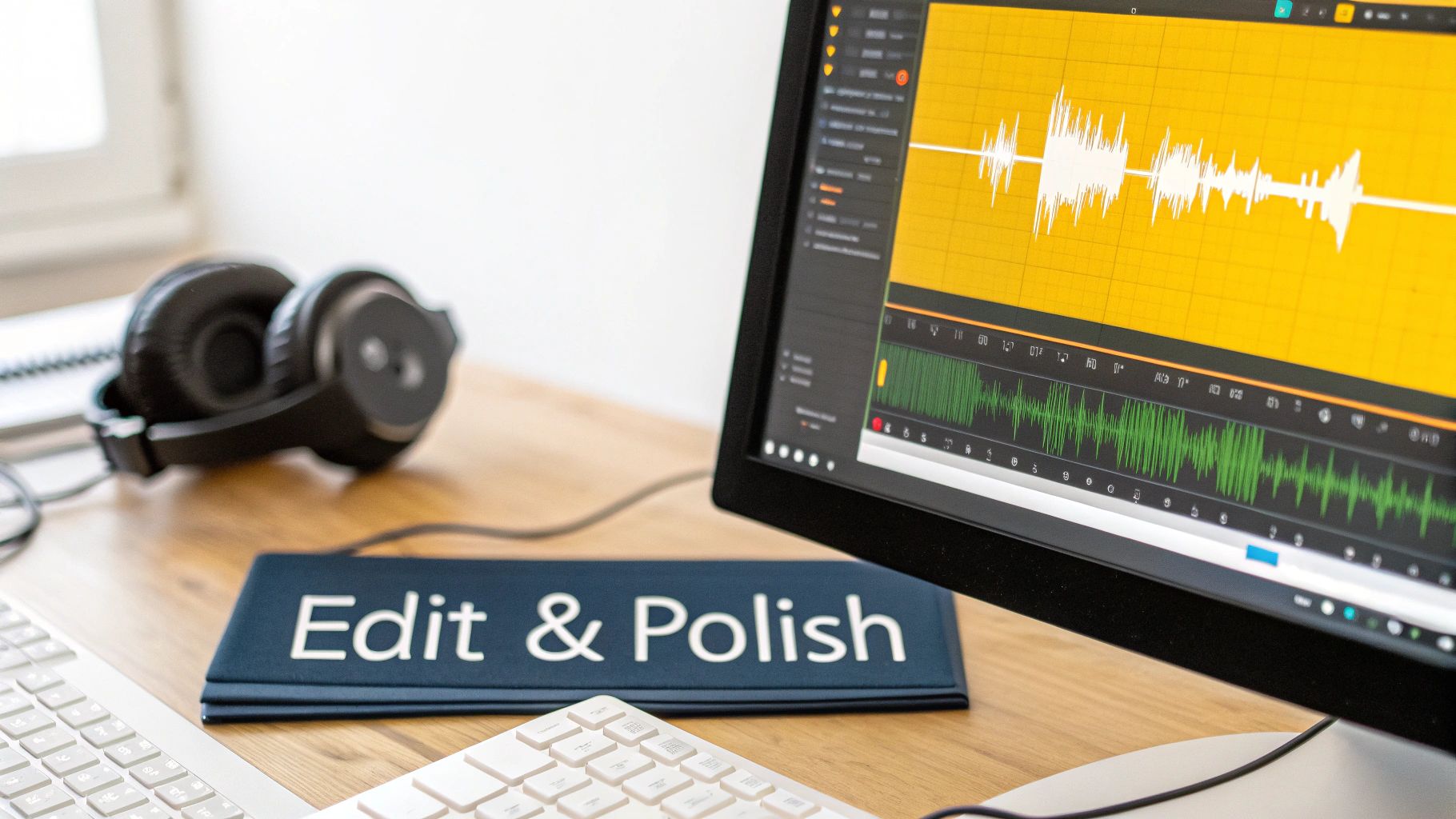
One feature that's an absolute game-changer is the visual audio waveform. This little graph of your sound lets you see the dialogue, making it super intuitive to just drag the edges of a subtitle to line up perfectly with when someone starts and stops talking.
This visual feedback is a lifesaver for cleaning up timestamps. Sometimes, if your original audio has a lot of background buzz, it can throw off the AI's timing a little. Taking a few minutes to remove background noise from audio before you even start can give you a cleaner initial transcript, saving you a bunch of editing later.
A smart editor should also have features built to speed you up. In TranslateMom, for example, clicking on any line of text automatically pauses the video so you can type without the audio running away from you. For the power users out there, keyboard shortcuts are everything. You can use keys like [ and ] to shift subtitle lines around or + and - to resize the font on the fly. It's this mix of visual aids and handy shortcuts that makes the whole process feel less like a chore and more like a craft.
How to Edit and Polish Your Transcript
An AI transcript usually gets you about 95% of the way there, which is a fantastic start. But that last 5% is where the real magic happens. This is the polishing phase where you turn a good-enough transcript into something clean, accurate, and professional. It’s what separates decent content from great content.
Your first pass should be all about accuracy. AI is pretty sharp, but it can easily trip over company names, technical jargon, or unique spellings of personal names. The best way to do this is to simply play the video and read along, correcting any words the AI got wrong. Keep an eye on punctuation, too—a misplaced comma or full stop can completely change the meaning of a sentence.
Mastering Timestamps with a Visual Waveform
Once the text itself is perfect, you need to sync it flawlessly with the video. This is where a dedicated editor, like the Studio Workspace in TranslateMom, becomes your best friend. It’s built specifically for this kind of work, giving you tools that go way beyond what a simple text editor can offer.
The killer feature here is the visual audio waveform. Instead of just looking at text and timestamps, you get a graphical map of the sound. You can literally see the dialogue, making it so much easier to spot pauses, interruptions, and the exact moment someone starts or stops talking.
This visual approach makes lining up subtitles a breeze:
- Drag to Adjust: You can just grab the edge of a subtitle block on the waveform and drag it to match the audio perfectly. No more fiddling with numbers.
- Spot Dead Air: Long silent gaps are obvious on the waveform. You can quickly tighten up your captions so they only appear when someone is actually speaking.
- Handle Overlaps: When people talk over each other, you can see it clearly and decide how to split or merge the text to keep it readable.
This visual feedback makes getting millisecond precision feel intuitive, not tedious.
A little workflow feature I love in TranslateMom's Studio is that when you click a line of text, the video automatically pauses. It sounds simple, but it lets you focus on the edit without constantly stopping and starting the player. It’s a huge time-saver.
Structuring Text for Readability
The final touch is all about formatting the text so it’s easy for people to read on screen. A giant, unbroken wall of text is a pain, especially on a phone.
Keep these simple rules in mind:
- Split Long Lines: If a sentence runs on for too long, break it into two (or more) shorter subtitle lines. Try to follow the natural rhythm of the speaker.
- Manage Speaker Changes: For videos with multiple speakers, make sure each person's dialogue is clearly marked. Even if the tool handles speaker labels automatically, you might need to clean them up.
- Use Keyboard Shortcuts: This is a pro move that will speed things up dramatically. In TranslateMom, for example, you can use
[and]to shift a subtitle line up or down the timeline, or+and-to tweak the font size on the fly.
Putting in this extra effort ensures your final transcript isn't just accurate—it’s clean, professional, and perfectly in sync with your video.
Exporting Your Text in the Right Format
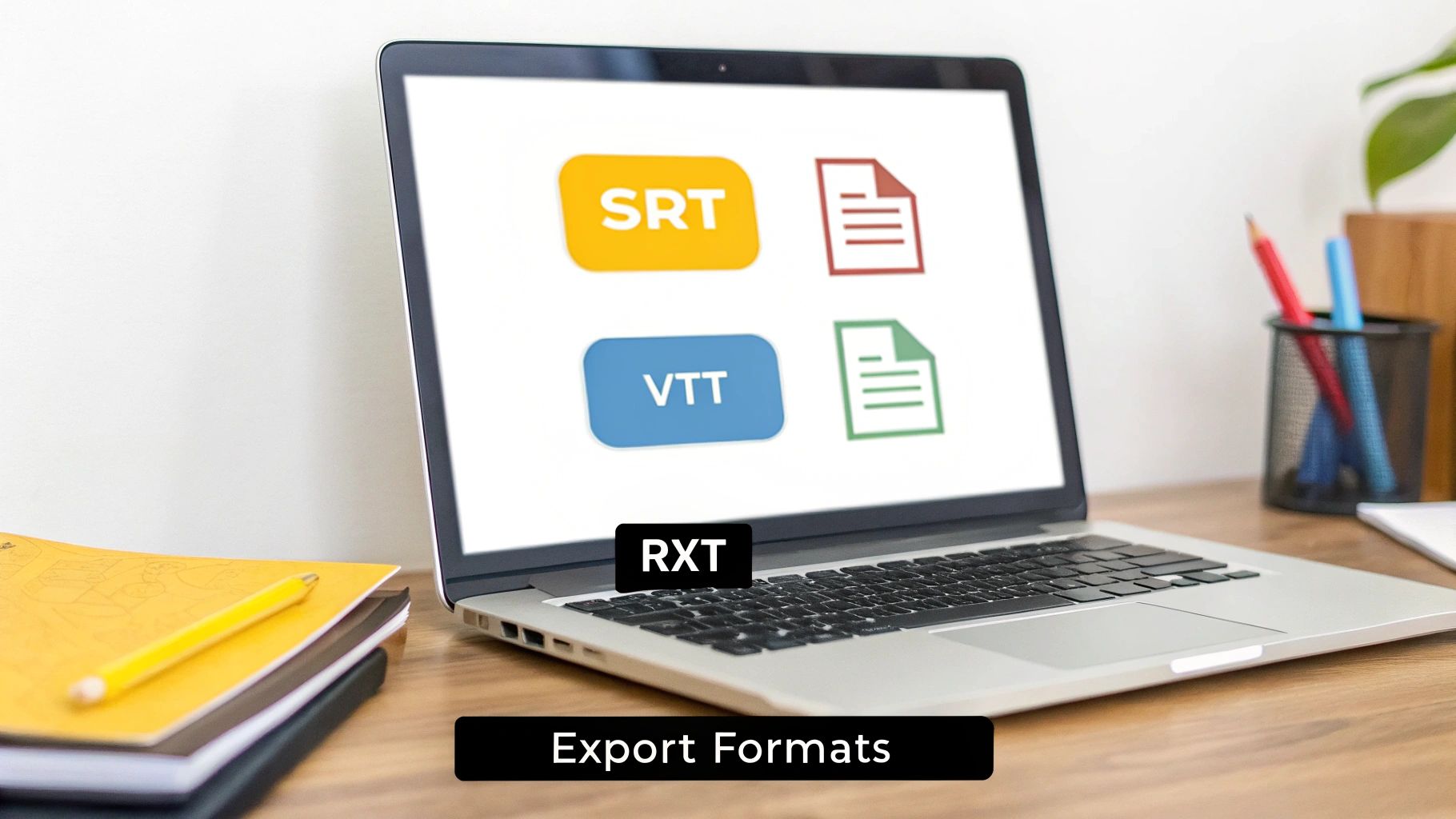
Alright, you've put in the work and polished your transcript until it shines. Now for the final, crucial step in your MP4-to-text journey: getting it out of the tool and into the world in a useful format.
Choosing the right file type is just as important as the accuracy of the words themselves. It's what determines where and how you can actually use your new content. Think of it like this—you wouldn't put soup in a paper bag. You need the right container for the job, and the same goes for your text.
Choosing Your Download Format
Most professional transcription services give you a handful of export options. When you hit the export screen in TranslateMom, for example, you'll see choices like .TXT, .SRT, and .VTT. Each one has a specific job, and knowing which one to pick will save you a ton of hassle down the road.
To make it simple, let's break down the most common formats and what they're actually for.
Common Transcript and Subtitle File Formats
Here's a quick look at the popular text and subtitle file formats you'll encounter and their main purpose.
| File Format | Primary Use | Key Feature |
|---|---|---|
| .TXT | Repurposing content (blogs, articles, show notes) | Just the raw, unformatted text. Simple and universally compatible. |
| .SRT | Video platform captions (YouTube, Vimeo, LinkedIn) | Text is segmented with precise start and end timestamps. The industry standard. |
| .VTT | Web video captions (HTML5 video players) | Modern format that supports timestamps plus advanced styling and positioning. |
Ultimately, choosing the right format boils down to where your content is going to live.
The key takeaway is to match the format to the final destination. A .TXT is for documents, while an .SRT is for video platforms. Getting this right from the start streamlines your entire content workflow.
And hey, if you ever end up with a plain text file but realize you need proper subtitles, don't sweat it. You can check out our guide on how to convert a TXT file into an SRT.
Burning Subtitles Into Your Video
Sometimes, you don't want a separate file at all. You just want the words to be a permanent, unmissable part of the video itself. This is what we call "burning in" the subtitles, also known as creating "open captions."
In a tool like TranslateMom, this is as easy as hitting the "Export Video" option. The platform will take your styled subtitles, your logo, and any other branding you’ve added and render a completely new MP4 file with everything baked right in. You can even apply karaoke-style effects where words highlight as they are spoken.
This is the perfect approach for social media content, especially on platforms like TikTok or Instagram Reels where you can't upload a separate subtitle file. It guarantees your captions are seen by everyone, on any device, exactly how you designed them. The only trade-off is that viewers can't turn them off, but for snappy, short-form video, that's usually the whole point.
Common Questions About MP4 to Text Conversion
When you first dip your toes into video transcription, a bunch of questions usually pop up. The tech moves so fast that what was true a few years ago is ancient history today. Let's walk through some of the most common things people ask about turning an MP4 file into text.
How Accurate Is AI Transcription, Really?
This is the million-dollar question. And the short answer is: surprisingly accurate. Modern AI can often hit 95% accuracy or even higher, but only when the audio is clean.
Accuracy isn't a single number—it's more of a spectrum. Several things can throw it off:
- Audio Clarity: A crisp, clear recording with no background noise is the AI's best friend.
- Speaker's Accent: Really strong or unusual accents can sometimes confuse the algorithm.
- Pacing: People talking over each other or speaking a mile a minute is tough for any system to untangle.
- Technical Jargon: If you're talking about quantum computing or dropping unique brand names, the AI might mishear them at first.
That’s exactly why a good workflow always ends with a quick human proofread. You can catch those last few slip-ups and make it perfect.
Can a Tool Tell Different Speakers Apart?
Yep, absolutely. Most modern transcription tools now come with a feature called speaker diarization. It automatically figures out when a new person starts talking and labels their lines for you (like "Speaker 1," "Speaker 2").
This feature is a total game-changer for interviews, podcasts, or meeting recordings. Instead of having to listen back and manually guess who said what, the AI handles all that legwork. You get a clean, organized script right from the get-go.
What's the Best Way to Handle Really Long Videos?
Transcribing a two-hour lecture or a feature-length interview might sound like a huge task, but AI tools make it almost trivial. The trick is to use a service built to handle big files. For example, a professional tool like TranslateMom can chew through videos that are several hours long and supports uploads up to 5GB. You can either upload the massive file directly or just paste a link from a platform like YouTube.
The real beauty of using a dedicated platform for long videos is that the work happens on their servers, not your computer. You can upload your file, close your laptop, and just wait for the email telling you it's done.
Can I Get the Text Translated, Too?
This is where the magic of an all-in-one platform really comes into play. A basic transcription tool just gives you the text in its original language. But a full localization platform lets you do so much more.
With a tool like TranslateMom, it's all part of the same process. Once you've got your initial transcript (the "Source Language"), you just pick a "Target Language" and choose the Translation service. The system generates a brand new set of subtitles in Spanish, French, or dozens of other languages, all without you ever leaving the editor. It brings the MP4 to text process and translation together, so you don't have to juggle files between different apps.
Ready to turn your videos into accurate, editable, and translatable text in minutes? TranslateMom offers a powerful browser-based studio that makes transcription and localization effortless. Get started for free today and see how easy it can be.