If you want to connect with people beyond your own borders, you can't just stop at translating text. You need to translate French to English audio.
This means taking the spoken French from your videos or podcasts and turning it into English subtitles or even a completely new, dubbed audio track. It's the key to making your content instantly understandable for millions of new viewers and listeners.
Why Translating French Audio is Your Ticket to a Wider Audience
Think about it. There are incredible documentaries coming out of Québec and viral podcasts from Paris that most of the English-speaking world never gets to experience. When you translate that audio, you're not just swapping languages—you're bridging a huge cultural gap.
This opens up massive opportunities for creators. We're talking about more than just hitting a higher view count. It’s your chance to tap into new markets, boost your engagement, and build a brand that’s truly international.
Grow Your Content’s Footprint
Imagine you're a filmmaker from Montréal hoping to get noticed at international festivals, or maybe a French educator trying to sell online courses to a global market. Without English audio or subtitles, your audience is capped from the start.
By adding an English version, you instantly show up on the radar for a huge new demographic. This is absolutely critical in a world where great content should never be limited by language.
The numbers back this up, especially in a place like Canada. In 2021, Statistics Canada found that while English-French bilingualism hit 18.0% nationwide, that number was mostly propped up by Québec's 46.4% rate. Outside of Québec, bilingualism dropped to just 9.5%. This really drives home why French-Canadian creators need English translations to reach audiences across the entire country, let alone the rest of the world.
Modern AI tools aren't a luxury anymore; they’re an essential part of a creator's toolkit. They offer a fast, affordable way to make your work accessible and can help turn a regional hit into a global phenomenon.
The Real Power of Accessible Content
Making your content accessible is just good strategy. When you provide English subtitles or dubbing, you’re doing a few very smart things at once:
- You hook people for longer: Viewers are far more likely to stick around and watch a whole video if they can actually understand it without struggling.
- You include everyone: It opens up your content to people who are deaf or hard of hearing.
- You get a nice SEO boost: Search engines can read and index the text from your subtitles, which helps your video show up in relevant English search results.
This whole process has become incredibly simple with tools like TranslateMom. You can upload your French video file by dragging it into the browser, or even just paste a link from YouTube, TikTok, or Instagram. From there, you just set the source language to French and the target to English, then decide if you want subtitles or a full AI dub.
With a workflow that simple, any creator can start breaking down language barriers in just a few minutes.
Subtitles or AI Dubbing: Which Path Should You Take?
So, you're ready to translate your French audio into English. Right out of the gate, you have a big decision to make: do you go with English subtitles or a full-on AI dub?
There’s no single "best" answer here. The right choice really hinges on your content, your audience, and what you want them to feel. This decision will completely shape how new viewers connect with your work.
Subtitles are fantastic when authenticity is everything. Think about it—for things like documentaries, raw interviews, or news segments, keeping the original French audio is key. You preserve every ounce of the speaker's emotion, their unique tone, and the little nuances in their voice that say so much more than just words. It’s like giving your audience a window into the original culture, letting them hear the passion and rhythm of the French language while they read along in English.
On the flip side, AI dubbing offers a completely seamless, almost effortless viewing experience. For content where you need your audience to grasp information quickly—like explainer videos, e-learning courses, or snappy social media clips—dubbing is a game-changer. It gets rid of that mental juggling act of reading and watching at the same time, making the content feel like it was made just for an English-speaking audience. This can seriously boost engagement and make your content way more accessible, especially for people who just prefer to listen.
Making the Right Call for Your Content
Understanding your target market’s habits is crucial. For instance, Quebec is a creative powerhouse, with 94.5% of its population able to speak French. To tap into English-dominant provinces, translating that content is a must.
AI dubbing can be incredibly powerful for markets like Ontario, where over 1.5 million people are bilingual but might still prefer to watch content in their first language, English. At the same time, the huge spike in French immersion programs across Canada makes a strong case for offering dual-language subtitles as a learning tool. You can dive deeper into Canada's language landscape with some fascinating insights from Statistics Canada.
Pro Tip: You don't have to be locked into one choice. A flexible tool lets you have the best of both worlds. For language learners, TranslateMom offers a Dual Language Mode that stacks both French and English captions on screen, creating the perfect learning tool.
Tools like TranslateMom make this whole process incredibly straightforward by rolling both options into one simple workflow. Once your French video is uploaded, you just pick what you need:
- Translation: This option creates accurate English subtitles that you can then tweak and style to match your brand.
- Dubbing: This generates a brand-new AI audio track in English, swapping out the original French voice.
Subtitles vs AI Dubbing: Which is Right for Your Content?
Choosing between subtitles and AI dubbing can feel tricky, but it often comes down to the purpose of your video and audience preference. Let's break down the strengths of each approach to help you decide.
| Feature | English Subtitles | English AI Dubbing |
|---|---|---|
| Viewer Experience | Requires reading; keeps original audio and emotion intact. | Seamless listening; no reading required. Feels native. |
| Best For | Documentaries, interviews, films, news reports, artistic content. | Tutorials, explainer videos, e-learning, social media ads. |
| Authenticity | High. Preserves the original speaker's voice, tone, and cultural nuance. | Medium. Voice is synthetic but can match gender and tone. |
| Accessibility | Great for viewers with hearing impairments or in sound-off environments. | Ideal for multitasking viewers or those with visual impairments. |
| Learning Aid | Excellent for language learners who want to hear French and read English. | Less effective for language learning as the original audio is replaced. |
Ultimately, both methods are powerful tools for expanding your reach. The key is to match the method to the message for the biggest impact.
Putting It Into Practice
Let's imagine you've created a French-language cooking tutorial. Sure, subtitles work, but an AI dub lets your viewers keep their eyes glued to your knife skills and cooking techniques without constantly glancing down to read. It's a much smoother experience.
Now, picture a passionate film review where the critic's excited, fast-paced delivery is half the fun. In that case, subtitles are the clear winner, hands down. You wouldn't want to lose that energy.
Getting clear on the small details can also sharpen your strategy. If you're still weighing your options, understanding the nuances between different text-on-screen formats can help. We break it all down in our guide on the differences between closed captions and subtitles. At the end of the day, when you align your translation method with your content's goal, you're setting yourself up for a real connection with your new English-speaking audience.
Your Step-by-Step Workflow to Translate French Audio
Alright, let's get down to business. Theory is one thing, but making this happen is where the fun starts. I'm going to walk you through the entire workflow for translating your French audio into English using a professional-grade tool like TranslateMom.
Step 1: Ingestion (Getting Your Video into the System)
The whole process is designed to be as painless as possible, starting with just getting your French audio or video into the system. Everything starts on the New Task screen.
This first part, sometimes called ingestion, is super flexible. You have two main options:
- File Upload: Drag and drop your video file right into the browser.
- Link Import: Paste a URL from a major platform like YouTube, TikTok, or Twitter (X). The app will automatically import the video for you.
Step 2: Setting Up Your Translation Task
Once your file is loaded, it's time to tell the tool what you want it to do. You're basically giving it a quick project brief. It’s all laid out in three simple choices:
- Source Language: Pick French, the original language of your audio.
- Target Language: Choose English, the language you want to end up with.
- Choose a Service: This is the key decision. You'll choose between Translation (to create English subtitles) or Dubbing (to generate a brand new English AI audio track).
Your choice here really depends on what you're trying to achieve with your content and who you're trying to reach. This simple visual breaks down the two main paths you can take after that initial upload.
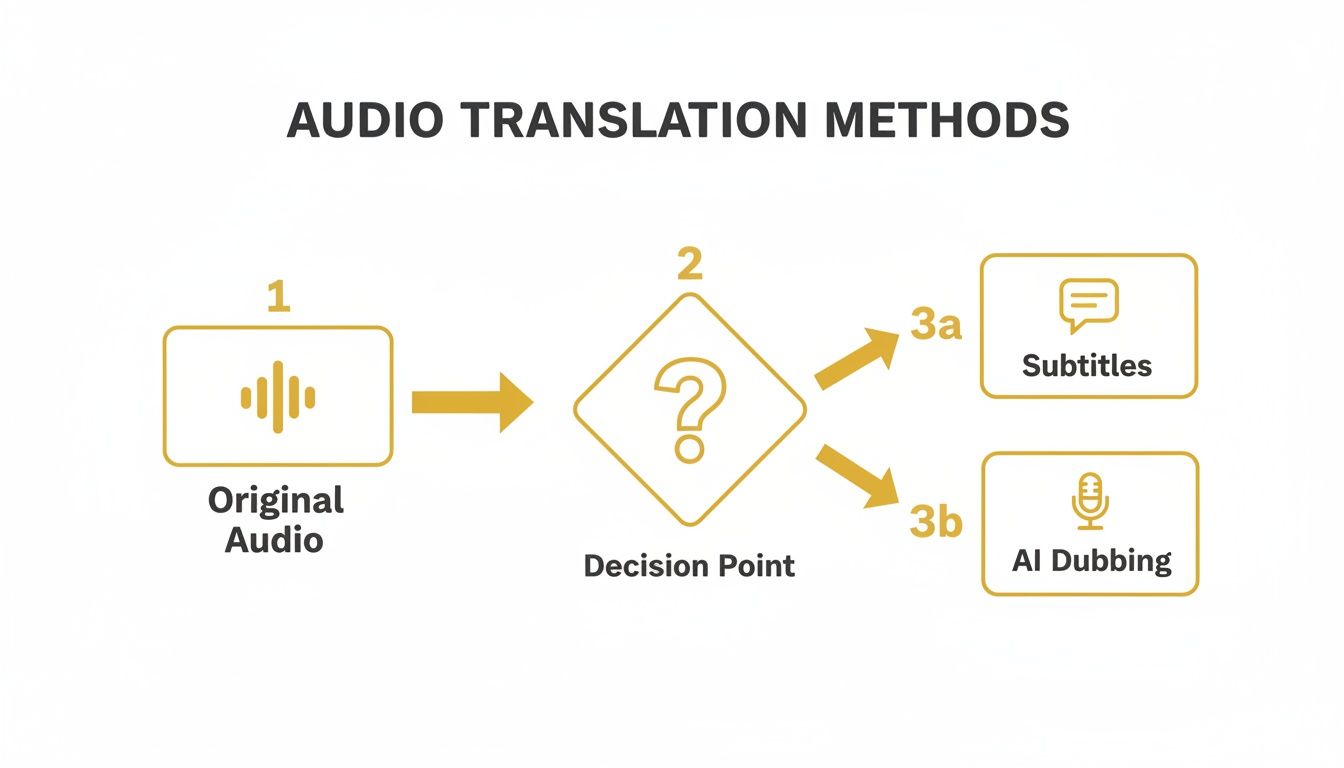
As you can see, whether you need subtitles for accessibility or an AI dub for a more immersive experience, you're starting from the exact same point.
Step 3: Navigating the AI Translation Process
Canada's unique linguistic makeup is the perfect real-world example of why this flexibility matters so much. While 98.1% of Canadians can speak English or French, where you are in the country changes everything. A creator in a bilingual hub like Gatineau might be perfectly fine with subtitles. But someone targeting an audience in Alberta, where only 6.1% of people are bilingual, would get way more traction with a full English AI dub. According to official language statistics, knowing your audience's language preference is critical.
The great thing about a modern AI video translator is that it doesn't just spit out a translation and call it a day. It drops you into a "Studio" editor where you can fine-tune everything. This is what separates a quick, amateur job from a truly professional result.
In the editor, you can tweak the timing of every single subtitle line right against the audio waveform, fix any quirky translations, and even change the caption style to match your brand. If you went with dubbing, you get to preview the AI voice to make sure it actually fits the video's vibe.
This level of control is what ensures your final product is polished and accurate. You're not just taking whatever the machine gives you; you're the director, guiding the AI to produce a final cut that you’re proud of. This workflow takes all the mystery out of the tech and puts some serious translation power right at your fingertips.
How to Refine Your English Translation for a Professional Finish
Automated tools are fantastic for getting your French audio into English fast. They do the heavy lifting—the transcription and initial conversion—and honestly, they knock out about 95% of the work.
But that last 5%? That’s where the magic happens. It's the human touch that takes a translation from just "good enough" to something truly professional and polished. This is how you make your content not just understandable, but genuinely engaging for your audience.
This is where a dedicated editor, like the Studio workspace in TranslateMom, really becomes your best friend. It gives you all the control you need to tweak every last detail, ensuring your subtitles or AI dub sound completely natural to a native English speaker.
Fine-Tuning Subtitles with Precision
The heart of any good refinement process is the subtitle editor. This is your chance to catch those subtle nuances in phrasing that an AI might overlook.
For example, a literal translation of a French idiom can sound clunky or just plain weird in English. The editor lets you rephrase it to capture the spirit of the original line, making it sound like something a native speaker would actually say. Click any text line to edit it, and the video will automatically pause to let you focus.
The real power, though, comes from tweaking the timing. Using a visual audio waveform, you can see exactly where the dialogue starts and stops. This lets you drag the beginning and end points of each subtitle to perfectly match the speaker's cadence. No more captions popping up too early or hanging around awkwardly during a pause.
A total game-changer for accuracy is using a Split View. This feature in the TranslateMom Studio shows you the original French text right next to your new English translation. Comparing them side-by-side makes it incredibly easy to spot any lost meaning and verify everything is spot-on.
Styling Your Captions for Impact
Beyond just the words and timing, how your subtitles look plays a massive part in keeping viewers hooked. A professional finish means making sure your captions match your brand's style.
Jump into the Style tab, and you can customize pretty much everything:
- Font: Pick a font family and size that’s easy to read and fits the vibe of your video.
- Colour & Effects: Change up the text colour, add an outline, or use a soft shadow to make sure the text is legible against any background.
- Animations: If you’re making content for social media, try out a karaoke-style effect where words are highlighted as they're spoken. It’s a great way to boost engagement.
You can also pop over to the Brand tab to upload and place your logo, giving all your content a consistent, professional look. If you're curious about how these principles apply to other language pairs, this practical guide to audio English to German translation offers some great insights that are universally helpful.
Reviewing and Perfecting AI Dubbing
If you went with an AI-dubbed audio track, your review process is all about listening. You’ll need to put on your critic's hat and pay close attention to the pacing, tone, and emotional delivery.
Does the English AI voice match the energy of the original French speaker? Does the rhythm of the speech feel natural, or does it sound a bit robotic and rushed?
Listen for any awkward pauses or unnatural inflections. This is where the quality of your original audio really matters. If your French recording had a lot of background noise, it could throw off the AI's ability to create a clean dub. For some solid advice on cleaning up your audio before you start, check out our guide on background noise removal for video. A clean source file is always the best foundation for a flawless English dub.
Exporting Your Content for a Global Audience
Alright, you've done the hard work of translating your French audio. Now, how do you get it out into the world so people can actually see it?
Getting your content exported correctly is just as crucial as the translation itself. Different platforms have different rules and user habits, and picking the right format ensures all your effort pays off.

It really comes down to two main ways of doing things. Your choice depends entirely on where your audience is and how they'll be watching.
The "Burn-In" Method for Social Media
Think about how people use platforms like TikTok, Instagram Reels, or even YouTube Shorts. They're scrolling fast, and often, the sound is off. For these, the burn-in method is your best friend.
This technique, sometimes called open captions, literally embeds your English subtitles right onto the video file. They become a permanent part of the picture.
When you translate French to English audio and burn in the captions, you guarantee everyone sees them. No toggling, no settings—they're just there. This is perfect for creating a consistent look. Inside a tool like TranslateMom, you can even pop over to the Brand tab and add your logo before exporting. Now your content is instantly recognizable. Just hit "Export Video," and you get a brand-new file ready to upload.
Burning in your subtitles removes all the guesswork for your viewers. It makes your content immediately accessible and ensures your message lands, even if they're watching in a silent environment—which is the default on most social feeds these days.
Downloading Subtitle Files for Maximum Flexibility
The other way to go gives you a lot more control. Instead of locking the text into the video, you download a separate subtitle file, usually in SRT or VTT format. This is the standard for platforms like YouTube, where viewers can choose to turn captions on or off themselves.
This approach is the go-to for a few key reasons:
- Pro Video Editing: You can pull SRT files straight into software like Adobe Premiere Pro or Final Cut Pro. This gives you complete creative control over the final look and feel in your professional workflow.
- Accessibility: Providing a separate file lets platforms offer a much better experience for users who rely on screen readers or need to customise the caption appearance.
- Multi-Platform Use: Got an SRT file? You can upload it to YouTube, Vimeo, and other video hosts without having to re-render the entire video every single time. It's way more efficient.
In TranslateMom, choosing Download Subtitles will give you these industry-standard files. It ensures your translated content plays nice with pretty much any professional tool or publishing platform out there.
To make it even clearer, let's break down which export option works best for your specific project.
Export Options for Your Translated Video
This table summarizes the main formats and where they shine, helping you pick the right one every time.
| Export Method | Best For | Why Choose It |
|---|---|---|
| Burned-In Video (MP4) | TikTok, Instagram Reels, YouTube Shorts, social media ads | Guarantees subtitles are always visible, even with audio off. Perfect for fast-scrolling, mobile-first platforms. |
| SRT File (.srt) | YouTube (long-form), Vimeo, professional video editors (Premiere Pro) | The universal standard. Gives viewers control and allows for professional post-production editing. |
| VTT File (.vtt) | Web videos (HTML5 players), some learning management systems (LMS) | A modern format similar to SRT but offers more styling options, like text colouring and positioning, for web developers. |
| Plain Text (.txt) | Creating blog posts, show notes for podcasts, personal archives | Provides a simple, clean transcript of the dialogue. Great for repurposing your audio/video content into written articles. |
Choosing the right export option is the final, critical step in your translation workflow. By matching the file format to the platform, you ensure your content looks professional and reaches the widest possible audience.
Got Questions About French Audio Translation? I've Got Answers
Diving into audio translation for the first time? It's natural to have a few questions. As someone who has worked on countless projects like this, let me clear up some of the most common things people ask.
How Good Is AI for French to English, Really?
Honestly, today's AI tools are remarkably good. They nail the grammar and direct translations most of the time. But where they sometimes stumble is with the tricky stuff—cultural idioms, regional slang, or super-specific technical language.
That's why a final human check is always a good idea. It's not about redoing the whole thing, but about refining it. With a tool like TranslateMom, for example, you can jump into their Studio editor. This is where you can tweak the AI's work, adjust a phrase so it lands better with an English-speaking audience, and use the audio waveform to line up every single subtitle perfectly. It's that final polish that makes all the difference.
Can It Handle Audio with Multiple Speakers?
Yep, absolutely. This is a common need, especially for interviews or podcasts, and modern AI is built for it. The tech is often called speaker detection or diarization, and its job is to figure out who is talking and when.
This gives you a clean, organized transcript that’s easy to read. The one big tip I always give: start with the best quality audio you can get. The clearer the sound, the easier it is for the AI to tell one voice from another.
What's the Best File Format for My English Subtitles?
You'll almost always be choosing between two main formats: SRT (.srt) and VTT (.vtt). Think of SRT as the classic, tried-and-true option. It’s supported by pretty much every video player and editing software out there. You can’t go wrong with it.
VTT is the more modern choice, built for the web. It gives you more options for styling, like changing colours or text position. Before you get too deep in the weeds, it's really helpful to understand the fundamental difference between transcription and translation. Knowing that will help you decide which file format and workflow is right for your project. The good news is, platforms like TranslateMom let you export in both, so you’ve always got the flexibility you need.
Ready to get your French audio in front of a global audience in just a few minutes? With TranslateMom, you get top-notch subtitles and AI dubbing, all from a simple workflow right in your browser. Give your first project a try for free and see just how easy it is. Head over to https://www.translate.mom to get started.