So, how long can an Instagram video actually be? The honest answer is: it depends. A lot.
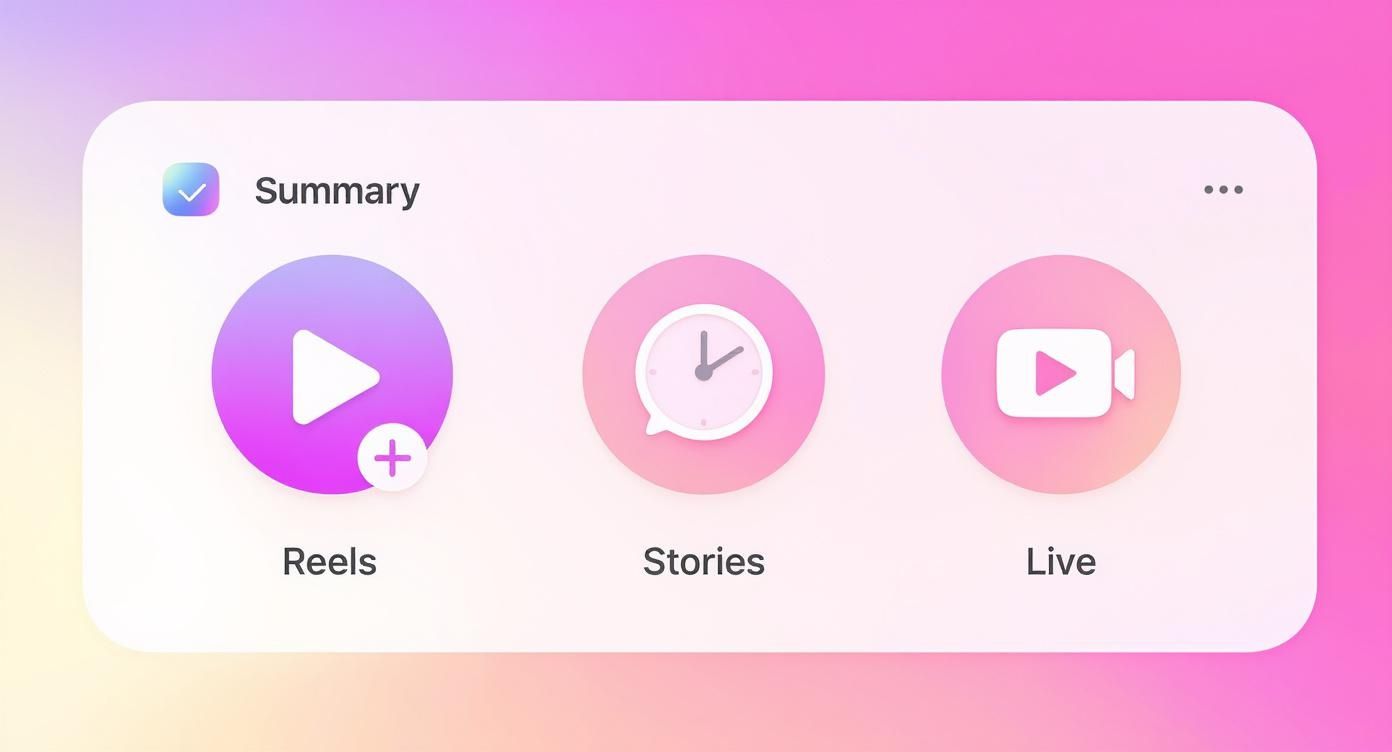
The time limit changes completely based on where you're posting. A Reel can run up to 3 minutes, a Story maxes out at 60 seconds, a Feed video can be 60 minutes long, and a Live broadcast can go for a whopping 4 hours.
Each format has its own vibe and audience expectation, so knowing these numbers is the first step to getting your video strategy right.
A Quick Guide to Instagram Video Lengths
Think of each Instagram video format as a different tool in your toolbox. You wouldn't use a hammer to turn a screw, right? Same idea here. The time limits are set to match how people use that part of the app—whether they're looking for a quick laugh or a deep dive into a topic.
This visual breaks it down nicely, showing the huge difference between a quick Story and a marathon Live session.
Instagram has been tweaking these limits over time, generally giving creators more room to play with.
The Official Limits for Each Format
As of early 2025, Instagram has settled on some updated lengths to give us more creative freedom.
Remember when Stories were awkwardly chopped into 15-second bits? Thankfully, that's gone. Now, you can upload a seamless 60-second video directly to your Story. Instagram Reels also got a boost, jumping up to 3 minutes. This was a big deal, and even Instagram's Head, Adam Mosseri, confirmed the change was all about giving creators more space for storytelling. If you want to dive deeper into how these changes affect content, there are some great industry analyses out there.
Just a friendly reminder: just because you can make a 60-minute video doesn't always mean you should. The best-performing videos usually grab your attention in the first few seconds. Brevity is often your best friend.
Instagram Video Length and Spec Cheat Sheet
To save you the headache of looking this stuff up every time you post, I've put together a simple cheat sheet. It's got all the key specs in one place—length, aspect ratio, and file size—so you can get back to creating.
| Video Type | Maximum Length | Minimum Length | Recommended Aspect Ratio | Max File Size |
|---|---|---|---|---|
| Reels | 3 minutes | 3 seconds | 9:16 | 4 GB |
| Stories | 60 seconds | 1 second | 9:16 | 250 MB |
| Feed Video | 60 minutes | 3 seconds | 4:5 or 9:16 | 4 GB |
| Live | 4 hours | N/A | 9:16 | N/A |
Bookmark this page or screenshot the table. It’s a real time-saver! Now you know exactly what the rules are for each video format on the platform.
Choosing the Right Video Format for Your Content
Knowing the technical specs for Instagram video is one thing, but the real magic happens when you pick the right format for your message. Each video type on Instagram has its own vibe and audience mindset. Matching your content to the right format is everything.
Think of it like this: you wouldn't show a full-length movie trailer during a 15-second Super Bowl ad slot. It just doesn't fit. The same goes for your Instagram content—it has to feel right for where people are seeing it.

Reels: Your High-Energy Hook
Instagram Reels are your brand’s highlight reel, built for discovery. These quick, punchy videos (up to 3 minutes) are your best shot at grabbing the attention of people who don't follow you yet, right from the Explore page.
- Best For: Viral trends, quick-fire tutorials, slick product showcases, and anything entertaining that moves fast.
- The Vibe: People are scrolling fast, looking for a quick laugh or a cool tip. You have literally seconds to make them stop.
Stories: Your Authentic Backstage Pass
Stories disappear after 24 hours (unless you pin them to your Highlights), and that's their superpower. This makes them perfect for the raw, unpolished, behind-the-scenes stuff that builds real connections with your followers.
- Best For: Daily check-ins, fun polls and Q&As, flash sales, and showing the real people behind your brand.
- The Vibe: Your followers are popping in for casual, in-the-moment updates from accounts they already love.
Honestly, your most authentic self shines in Stories. Nobody expects perfection here. It's where your brand’s personality can really breathe, building a community that feels like they're part of the journey.
Feed Videos: Your Evergreen Content Library
Feed videos (which Instagram now lumps into the "Instagram Video" tab) can run up to 60 minutes long. This makes them the home for your deeper, more permanent content that lives on your profile grid forever.
- Best For: In-depth tutorials, mini-documentaries, insightful interviews, and detailed product deep-dives.
- The Vibe: Someone has landed on your profile and is ready to commit. They've decided to stick around and are willing to invest more time in what you have to say.
Instagram Live: Your Real-Time Community Event
With a massive 4-hour time limit, Instagram Live is the ultimate tool for direct, unfiltered engagement. You're broadcasting in real-time, chatting with your audience through comments and questions as they come in.
- Best For: Live Q&A sessions, broadcasting an event, launching a new product, or hosting collaborative interviews.
- The Vibe: Your audience wants to connect with you, right now. They’re looking for that immediate, unfiltered interaction.
No matter which format you choose, making your content accessible is a must. If you’ve just wrapped up a great Instagram Live or posted a detailed Feed Video, you can use a tool like TranslateMom to add professional captions. Just head to the New Task screen, paste the Instagram video link, select the Source Language of your video, and choose the Transcription service. It's a simple way to make sure everyone can understand your best content, even with the sound off.
How to Share Longer Videos on Instagram
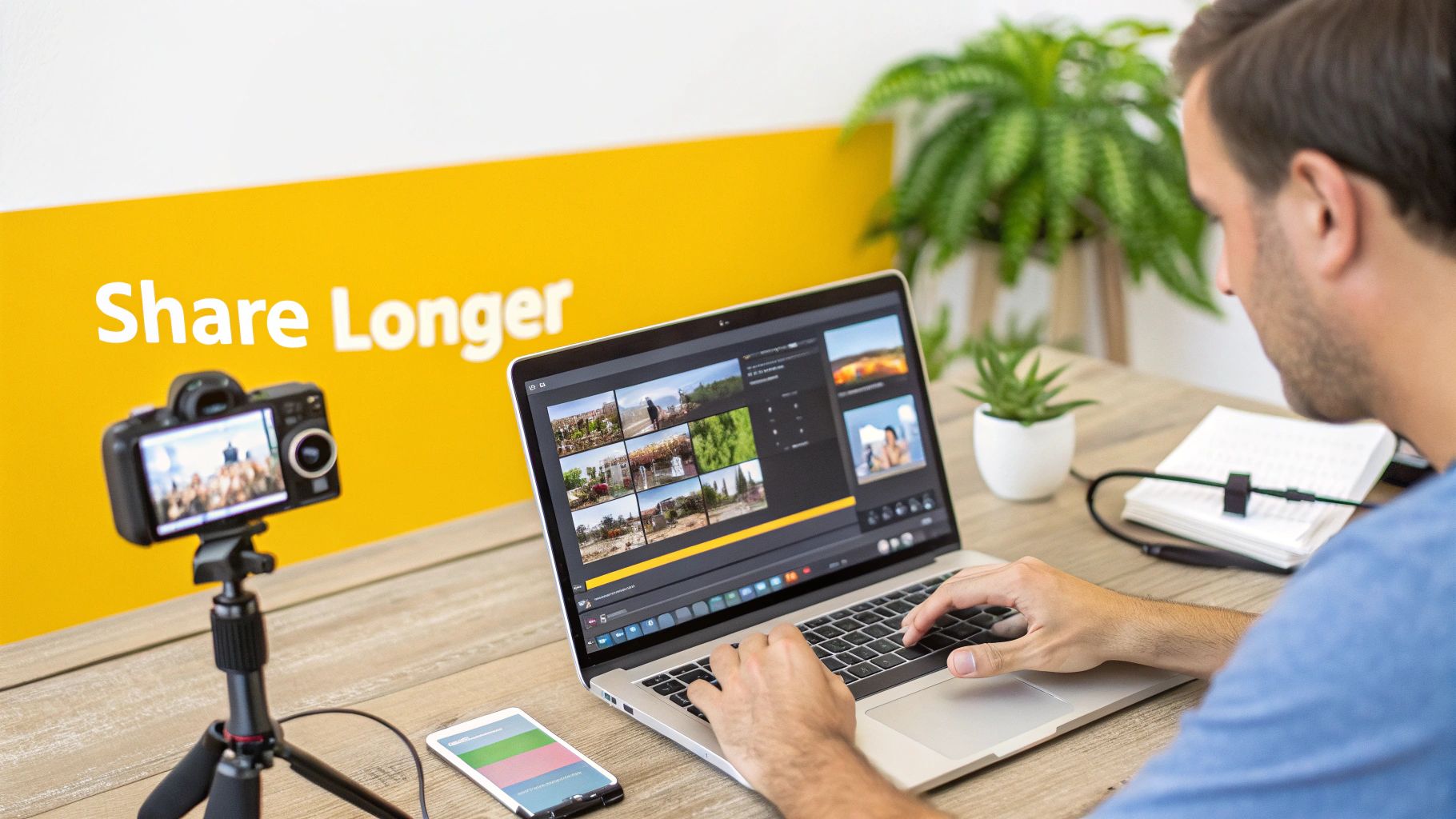
So, what do you do when your video is just a little too long for the format you had in mind? Don't hit the panic button or start chopping up your masterpiece just yet. Instagram has a few clever workarounds that let you share longer content without wrecking your story.
First things first, if your video is on the longer side, it’s a good idea to check its file size. Huge files can trigger upload errors before you even get a chance to post. If you're running into trouble, it might be worth learning how to reduce MP4 file size without losing that crisp quality. Once your file is good to go, you can pick the best strategy from here.
Use a Carousel Post for Multi-Part Videos
Think of the carousel post as your secret weapon for videos that just miss the Reel or Feed preview cutoff. A carousel lets you upload up to 10 clips—or a mix of videos and images—into a single, swipeable post.
This is a fantastic trick for storytelling. You can slice a longer video into a few seamless, one-minute segments and upload them in the right order. It naturally encourages your viewers to swipe through to see what happens next, keeping them glued to your content.
Upload from Your Desktop for Longer Feed Videos
While most of us live on the Instagram mobile app, the desktop version has a hidden perk. You can upload an "Instagram Video" post up to 60 minutes long straight from your computer’s web browser.
This is the perfect solution for those in-depth tutorials, detailed interviews, or mini-documentaries that just need more time to breathe. Just log in to Instagram.com on your computer, hit the "Create" button, and drag your video file over to get started.
Go Live and Share the Replay
When you need to go really long and engage with your audience in real-time, nothing beats Instagram Live. You can broadcast for up to four hours straight, which is ideal for live events, workshops, or those marathon Q&A sessions.
The best part? After your broadcast ends, Instagram lets you share the entire replay to your video feed. It becomes a long-form video post that followers who missed the live event can catch up on later. Understanding different ways to share content on the platform, including reposting Instagram Reels effectively, can help you build a more robust video strategy.
Boost Engagement with Accessible Captions
You could have the perfect video length, but what’s the point if a huge chunk of your audience can’t understand it? Think about it: so many people scroll through their feeds with the sound off. Captions aren't just a nice-to-have anymore; they’re essential for making sure your message actually gets across.
Getting your videos captioned and accessible doesn't have to be a headache. TranslateMom makes it pretty straightforward. You just kick off a New Task, then either drag and drop your video file or paste the Instagram link to import it. From there, all you have to do is choose the Transcription service to get accurate, same-language captions for your video.
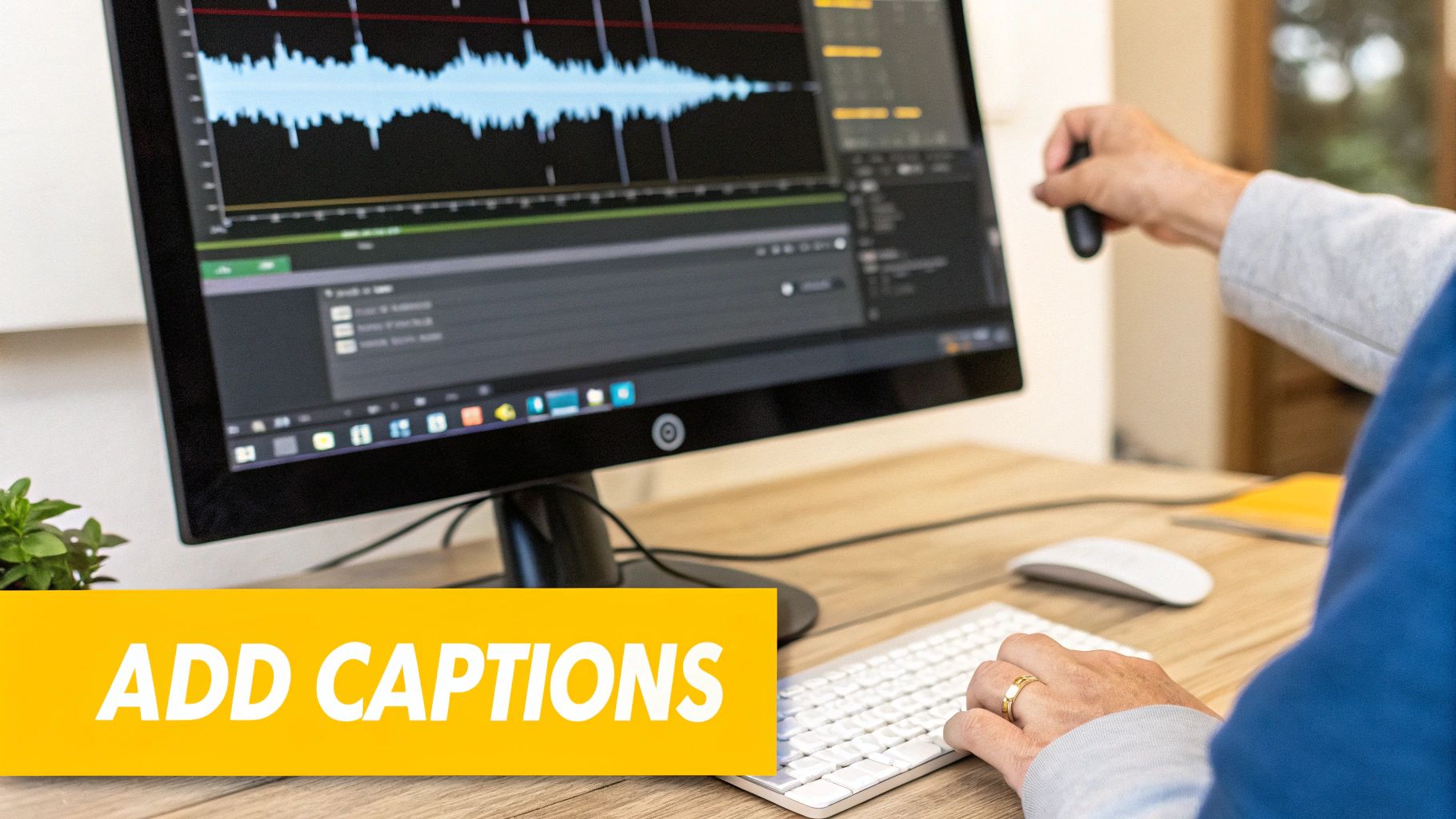
This is where the magic happens—inside the Studio Workspace, you can polish your captions until they're perfect.
Once the first draft of captions is ready, you can jump in and fine-tune every last detail. The editor even has a visual audio waveform, which is a lifesaver for matching the text precisely to the spoken words. No more awkward timing or weird pauses.
Perfecting Your Captions for Maximum Impact
This is where you get to take full control. A good editor lets you fix any little mistakes the transcription might have made, adjust the timing down to the millisecond, and make sure the captions feel like you.
- Edit Text Instantly: Just click on a line to fix it. The video pauses right where you are, so you can focus on typing without losing your spot.
- Adjust Timing with Precision: Use the visual waveform to drag the start and end points of each caption. It makes syncing them up with the audio a breeze.
- Customize Appearance: Hop over to the Style tab to customize fonts, colors, karaoke-style animations, and backgrounds. You can also head to the Brand tab to upload and position a custom logo.
Nailing your captions isn't just about accuracy; it's about showing you care. Well-timed, easy-to-read captions keep people watching and make your content welcoming for everyone, including the deaf and hard-of-hearing community.
To really see a jump in engagement, you'll want to make sure your captions are fully optimized. This guide on how to find and fix video captions that kill engagement is packed with great tips to sharpen your strategy. And for a step-by-step look at the whole process, check out our guide on how to add subtitles to a video.
Take Your Content Global with Multilingual Subtitles
So, you’ve got your captions sorted out for your primary audience. Awesome. But why stop there? The real magic happens when you start breaking down language barriers and reaching viewers all over the world.
Translating your video subtitles isn't nearly as complicated as it sounds, especially when you have the right tools in your back pocket. It's a total game-changer, no matter how long your Instagram video is.
With a tool like TranslateMom, you can go way beyond simple transcription and translate your video into over 100 different languages.
A Quick and Easy Translation Workflow
Getting started is as simple as creating a New Task, just like you would for a regular transcription. The key difference is how you set things up.
- Ingest Video: Start at the New Task screen and either upload your file or paste a link from Instagram.
- Set Your Source: First, tell the tool what language is spoken in your video. This is your Source Language.
- Pick Your Target: Next, choose the language you want to create subtitles for. This is your Target Language.
- Choose the Service: Finally, just select the Translation service to kick things off.
After the translation works its magic, you'll land in the Studio Workspace, which has some seriously cool features to help you nail the final result.
I’m a big fan of the Split View feature. It shows your original text right next to the new translation, so you can compare them side-by-side. This is perfect for making sure the nuance and context of your message come through perfectly. For language learners, you can even enable a Dual Language Mode to stack both languages directly in the video.
From there, you can hop over to the Style tab to tweak the look of your new subtitles to match your brand. For any creator serious about growing their audience, learning to translate audio to English or any other language is one of the most powerful moves you can make. This simple process makes professional-level video localization something any of us can do.
Got More Questions About Instagram's Video Limits?
Figuring out the rules for how long an Instagram video can be usually sparks a few more questions. Let's walk through some of the most common ones so you can post without any guesswork.
What Happens If My Video Is Too Long?
So you’ve got a video that’s a little over the limit. What happens next?
Instagram won't just reject your upload. Instead, it’ll automatically trim your video to the maximum length for that format. For a feed post, this means it’ll snip it down to a 60-second preview. For a Story, it just cuts off right at the 60-second mark. The good news is, you get to adjust which part of the video gets shown before you hit post.
Does Video Quality Change the Length Limit?
Nope, not at all. A video's quality—whether it's 1080p or crisp 4K—doesn't affect the time limits. A 3-minute Reel is still a 3-minute Reel, no matter how high-def it is.
That said, higher-quality videos do create much larger files. Keep an eye on the file size, because if you go over the 4 GB limit for Reels and Feed Videos, you might run into upload errors or just be stuck waiting a long time for it to process.
Are the Limits Different for Business Accounts?
This one’s a simple no. Every type of Instagram account—personal, creator, or business—plays by the same rules. The video length restrictions are the same for everyone across the entire platform.
Ready to make every second count for viewers around the world? With TranslateMom, you can add spot-on, professional subtitles and translations in over 100 languages. Give it a try with a free task today.