The simplest and most straightforward way to download a Vimeo video is to just look for the "Download" button. You'll find it right below the video player, but there's a catch—it only shows up if the creator has specifically allowed downloads for that video.
If you see it, you're in luck. Just give it a click, and you can save the video file directly to your computer, often with a few different quality options to choose from.
Figuring Out Your Download Options
Before you start looking for complicated workarounds, it’s really important to understand how Vimeo works. The platform puts all the power in the hands of the video creator. That means your ability to download a video is entirely based on the permissions they’ve set.
Think of it this way: a creator might be happy for you to download a free public tutorial, but they'll likely disable downloads for a paid workshop exclusive to members. Content you buy through Vimeo On Demand, on the other hand, almost always includes a download option so you can watch it offline. Knowing these little details is the key to downloading videos the right way.
Vimeo Video Download Methods at a Glance
To make it even clearer, I've put together a quick table. This should help you figure out the best move depending on what you see on the video page.
| Method | When It Works | Ease of Use | Best For |
|---|---|---|---|
| Official Download Button | When the creator enables it. | Very Easy | Directly saving creator-approved content in high quality. |
| Vimeo On Demand (VOD) | After you purchase or rent a video. | Easy | Accessing paid films, series, or tutorials for offline viewing. |
| Screen Recording | When no download button is available. | Medium | Capturing video for personal reference or study notes. |
| Third-Party Tools | When no download button is available. | Varies | Saving public videos when other methods aren't an option (use with caution). |
Once you manage to get the video saved, the good news is it will almost always be in a standard format. Think of it just like when you download .mp4 files from other sources. This makes life much easier because the file will be compatible with pretty much any device or editing software you want to use.
Using Vimeo’s Official Download Feature
The best, and frankly, the most straightforward way to download a Vimeo video is to use the platform's built-in download button. It’s the creator’s way of giving you a clear thumbs-up to save a copy for offline viewing. If you see it, you're good to go.
When a creator has enabled downloads, you'll find a “Download” button right below the video player. It’s usually sitting next to the "Share" and "Like" buttons, so there’s no need to dig around for it.
Understanding Your Download Options
Once you click that button, a little menu pops up with different quality options. What you see here depends entirely on the file the creator originally uploaded.
- SD (Standard Definition): These are your 240p or 360p options. The files are small and download fast, which is perfect if you just need the content and aren't too concerned about crystal-clear quality.
- HD (High Definition): This is where you'll find 720p and 1080p. It's the sweet spot for most people, offering a great balance between crisp visuals and a file size that won't take forever to download.
- Original: This is the big one—the exact source file the creator uploaded. It could be 2K, 4K, or even higher. If you need the absolute best quality for a project, this is your pick. Just be ready for a massive file.
Pro Tip: My rule of thumb is to always grab the highest quality available if you have the space. You can always make a high-res video smaller later, but you can’t magically add detail to a low-res file.
How It Works for Paid Content
This same simple process applies to paid videos, especially for Vimeo On Demand content. When you buy or rent a movie or a tutorial series, the creator almost always includes the option to download it. It’s super handy for watching on a flight or anywhere else you're without internet.
The download button for paid videos is in the exact same spot, right under the player. The only catch is you need to be logged into your Vimeo account after completing the purchase to see it. This is how Vimeo makes sure only paying supporters get access. It’s the ideal setup—you support the creator directly and get a legit, high-quality copy of their work.
What to Do When There’s No Download Button
So, you’ve looked everywhere below the video player, and the official download button is nowhere in sight. This happens all the time. Many creators choose to disable downloads to keep control over their work, and we have to respect that.
But what if you need an offline copy for personal use, like for a presentation or to watch on a flight? You're not entirely out of luck, but you do need to tread carefully. Your top priorities should be your own device's security and, of course, the creator's intellectual property rights.
To make things clearer, here’s a quick decision tree to help you figure out the best and safest path forward.
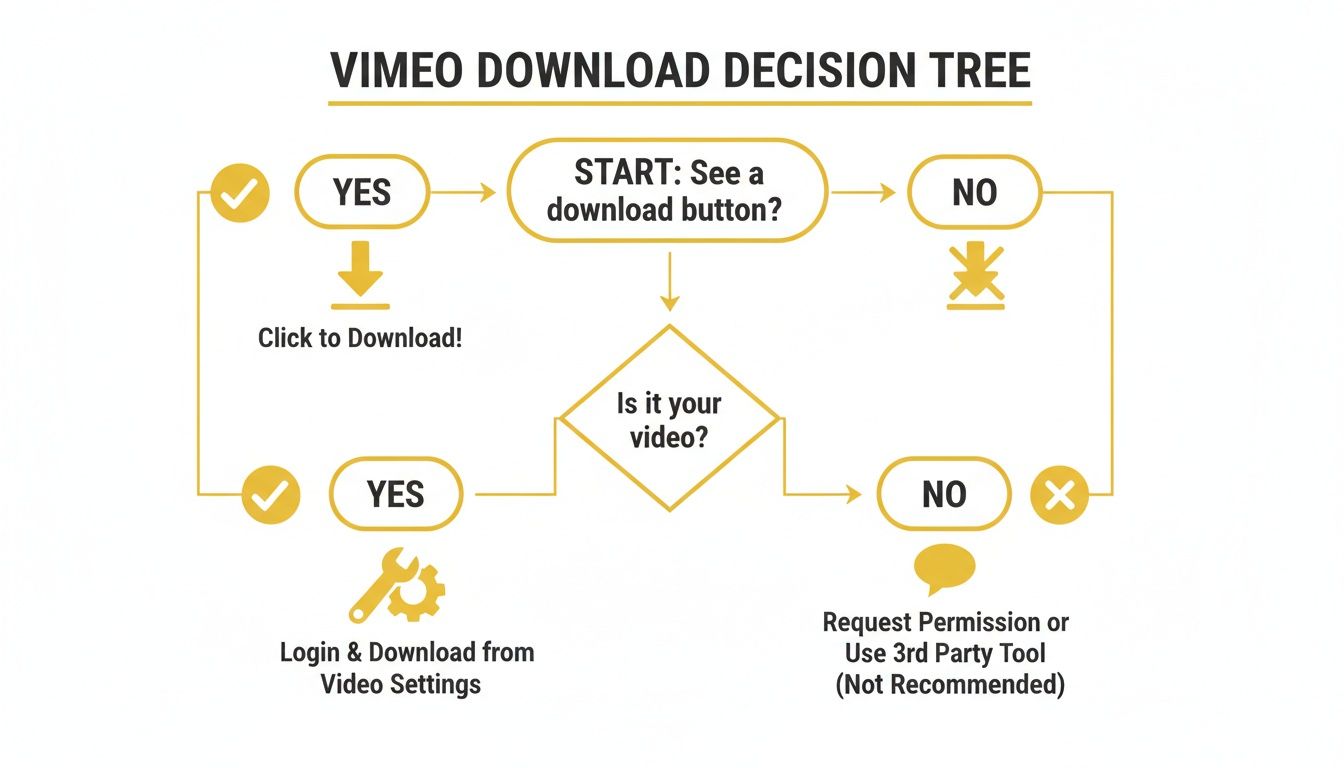
As you can see, the first move is always to look for that official button. If it’s a no-go, it’s time to consider some other, more hands-on alternatives.
The Safest Bet: Screen Recording
Hands down, the most reliable and secure way to get a personal offline copy is to simply record your screen. This way, you're not downloading shady files from sketchy sources; you're just capturing what's already playing on your monitor. It’s a clean and straightforward approach.
Most modern computers come with great built-in tools for this. Windows has the Xbox Game Bar, and macOS has a fantastic Screenshot toolbar. If you need more bells and whistles, dedicated software like OBS Studio (which is free) or Camtasia gives you much more control over the final quality.
To make sure you get a clean recording, follow these simple tips:
- Go Full-Screen: Before you hit record, make the Vimeo video full-screen. This prevents your browser tabs, bookmarks, or desktop icons from showing up in your final video.
- Check Your Resolution: For the best quality, make sure your computer’s display is set to at least 1080p.
- Capture the Right Audio: Dive into your recording software’s settings and make sure it’s capturing "system audio" or "desktop audio." This records the sound directly from the video, not from your room's microphone.
- Do a Quick Test: I always recommend recording a few seconds first. It’s a simple way to check that both the audio and video are coming through perfectly before you record the whole thing.
The real beauty of screen recording is that it always works—if you can see it and hear it, you can record it. The only trade-off is that the process happens in real-time, and the final quality depends entirely on your screen's resolution.
A More Technical Route: Browser Developer Tools
If you're comfortable with a bit more tech, you can sometimes find the direct video file link using your browser's developer tools. I'll be honest, this is a bit of a long shot and doesn't always work. Vimeo is pretty smart and uses streaming protocols that make this difficult.
Here's the gist of it: right-click on the page, hit "Inspect," and navigate to the "Network" tab. Reload the page, play the video, and you might see media files (like .mp4) pop up. Sometimes you can grab a source URL this way, but more often than not, you'll just find a bunch of small, fragmented video chunks that are a pain to put back together.
A Word of Warning on Third-Party Downloaders
A quick Google search will point you to tons of websites and apps that claim to download any Vimeo video. Please be extremely careful here.
While a few might actually work, many of these sites are loaded with pop-up ads, malware, or spyware that can seriously compromise your computer and your privacy. If you absolutely must go this route, only consider tools with a long-standing, solid reputation. Never, ever install software from a site you don't trust, and definitely don't give them any personal information.
Given the risks, screen recording is still my top recommendation when the official download button is missing. It's just so much safer.
Once you have your video file, you might notice it's a bit on the large side. If you need to shrink it down for storage or for sending to someone else, you can learn how to reduce MP4 file size without losing too much quality.
Understanding the Legal and Ethical Boundaries
When you start looking into how to download Vimeo videos, you’re also wading into the waters of copyright and intellectual property. It's really important to know where the lines are drawn—not just to keep yourself out of trouble, but to respect the creators who pour their time and energy into making great content.
The clearest signal is always the creator's intent. If you see that download button, they're giving you a clear green light to save a copy for offline viewing. That's the most straightforward and ethical way to go about it. Things get a bit murkier when that button is nowhere to be found.
Personal Use Versus Public Redistribution
A huge part of this comes down to what you plan on doing with the video once you've downloaded it.
Saving a video for purely personal use is generally a safe bet. Think of a student grabbing a lecture to study on the go, or someone saving a short film to watch on a plane without Wi-Fi. In many places, this falls under what's called "fair use" or "fair dealing."
The real problems start when a downloaded video gets redistributed. This is a big no-no and includes things like:
- Uploading the video to YouTube, X/Twitter, or another platform.
- Slicing up clips for your own commercial project without getting permission first.
- Dropping the video file onto a public forum or file-sharing site.
Doing any of this is a direct infringement on the creator’s copyright and a violation of Vimeo's rules. It’s the difference between photocopying a page from a book for your personal notes and printing off hundreds of copies to sell on the street. To get a better handle on this, it's also useful to know how creators control their content through on-screen text; you can learn more about the differences between closed captioning and subtitles to see another layer of this.
At the end of the day, the ethical question is pretty simple: Does what you're doing respect the creator's control over their own work, or does it take that control away? If your actions stop them from getting views, earning money, or deciding where their content shows up, you’re crossing a line.
Adhering to Vimeo’s Terms of Service
Vimeo’s own policies are designed to protect creators. When you use the platform, you're agreeing to their terms, which are very clear: you shouldn't download content unless the owner has explicitly made it available for download.
Using third-party tools or browser tricks to get around a creator's disabled download setting is a direct violation of these terms.
The safest and most responsible approach is to always follow the permissions set by the person who made the video. If you see a download button, you're good to go. If you don't, you need to think carefully about why you want the video and the potential fallout before you try to save it using other methods.
Adding Subtitles to Your Downloaded Videos
Once you've figured out how to download Vimeo videos and have the file sitting on your computer, a whole new world of possibilities opens up. Think of that raw video file as your canvas. One of the most powerful things you can do with it is add subtitles, making your content accessible and ready for a global audience.
Going from a simple downloaded file to a fully subtitled video is actually way easier than it sounds. With the right tools, you can add professional-grade captions or even translate your video into multiple languages, helping your message connect with people far beyond its original reach.
Getting Started with Localization
Your first move is to get your video into a dedicated localization tool. Platforms like TranslateMom are built specifically for this, giving you a full "Studio" environment to manage the entire process from start to finish.
The journey starts on the New Task screen. You’ve got two straightforward options here:
- File Upload: Just drag your downloaded Vimeo video file right into the browser.
- Link Import: If the video is still online on a public platform, you can simply paste the URL. TranslateMom will import it automatically.
After your video is in the system, it'll ask you to define your project. You'll pick the video's original spoken language (the Source Language) and then choose the service you need—whether that's a simple Transcription in the original language, a full Translation into a new one, or even AI Dubbing.
Fine-Tuning in the Studio Editor
This is where you make sure everything looks professional. The heart of a tool like TranslateMom is its Studio Workspace, which puts a video player right next to a powerful subtitle editor. Every line of text lines up with a visual audio waveform, so you can see exactly where the speech starts and stops.
You can click any subtitle line to edit the text on the fly. Even better, you can drag the start and end points of each caption right on the waveform. This precision timing makes sure your subtitles appear and disappear in perfect sync with the speaker, getting rid of any awkward delays.
Pro Tip: When you're translating, try using the "Split View" feature. It shows the original source text right beside your translation, which makes it super easy to check for accuracy and context without having to flip back and forth between screens.
To get accurate text quickly, especially for longer content, a dedicated sermon transcription service can be a massive help. Getting a clean transcript first can seriously speed up the whole subtitling process for creators with a lot of files to get through. If you want to dive deeper into the nitty-gritty, check out our detailed guide on https://www.translate.mom/blog/how-to-add-subtitles-to-a-video.
While it's tough to find specific stats on Canadian downloading habits, the global trend is clear: people want accessible content. A staggering 80% of videos on social media are watched with the sound off, which makes subtitles non-negotiable for engagement. Once you're happy with your edits, you can either download the subtitle file (like an SRT or VTT) or export a brand-new video with the captions permanently burned in.
Frequently Asked Questions
Got a few more questions? I get it. The world of video downloads can feel like a bit of a grey area. Here are some quick, straightforward answers to the questions I hear most often.
Is It Legal to Download Any Vimeo Video?
This is the big one, and the honest answer is: it depends. If the creator has flipped the switch and enabled the official download button, you’re good to go for personal use. They’ve given you the green light.
But when that button is missing, things get a bit murkier. Saving a video to watch offline for your own reference—say, for a school project—is often considered fair use (or fair dealing in Canada). However, if you start re-uploading, editing, or using that video for anything commercial without permission, you’re almost certainly crossing into copyright infringement territory.
My rule of thumb: When in doubt, always respect the creator's wishes. If they haven't made it downloadable, they probably have a reason.
Can I Download a Private Vimeo Video?
The short answer is no, not unless the owner explicitly gives you access and enables the download option for you. Private videos are private for a reason.
All those third-party tools and browser tricks simply won't work here. They can’t see what isn't publicly available. If you absolutely need an offline copy, your only real option is to reach out to the video's owner directly and ask them to enable the download setting for you. There are no secret backdoors for securely shared content.
Will Downloading a Video Reduce Its Quality?
This all comes down to how you download it.
Using Vimeo's official download button is your best bet. It lets you choose the resolution, so you can grab the file in its original, full-quality glory. No loss, no compression.
On the other hand, if you have to resort to screen recording, the quality will be tied to your monitor’s resolution and the software you're using. You might get a decent result, but it’s never going to be as crisp as the original source file. Some third-party downloaders can also compress the video, leaving you with a smaller file that looks noticeably worse. For top-notch quality, stick to the official method whenever you can.
Once you've got your video file, the next step is making it accessible for everyone.
With TranslateMom, you can upload your downloaded Vimeo video and instantly get accurate captions. Need to reach a global audience? Translate them into over 100 languages. You can tweak everything in our powerful Studio editor to get it just right.
Try it for free and start breaking down language barriers today.