Without a doubt, the easiest and safest way to download a Vimeo video is by using the platform's own download button. But what happens when it's not there? The creator has to enable that option, and if they haven't, you'll need to look at other ways to get the file or rethink your workflow entirely.
Your Options for Downloading Vimeo Videos
Before you even try to save a video, it’s worth understanding the different paths you can take. Each method has its own rules, level of complexity, and specific situations where it makes sense. The right choice really boils down to whether the creator gave permission and what you plan to do with the video file afterwards.
The most direct route is always the official one. But for certain situations, other options exist—they just require a bit more technical skill and a lot more caution. This is a common hurdle when downloading videos from other platforms as well.
The Official Method vs. Alternatives
The main way to download content is straight through the Vimeo interface. It's the only method that guarantees you're staying within Vimeo's terms of service and respecting the creator's wishes.
When that's not an option, some tech-savvy users might dig into their browser's developer tools to find the source file. It's more complex, but it can work. Then there's third-party software, which often promises easy downloads but operates in a legal grey area and can introduce security risks. If you go down that path, it's crucial to be careful and protect your device.
This handy flowchart breaks down that first critical decision you need to make.
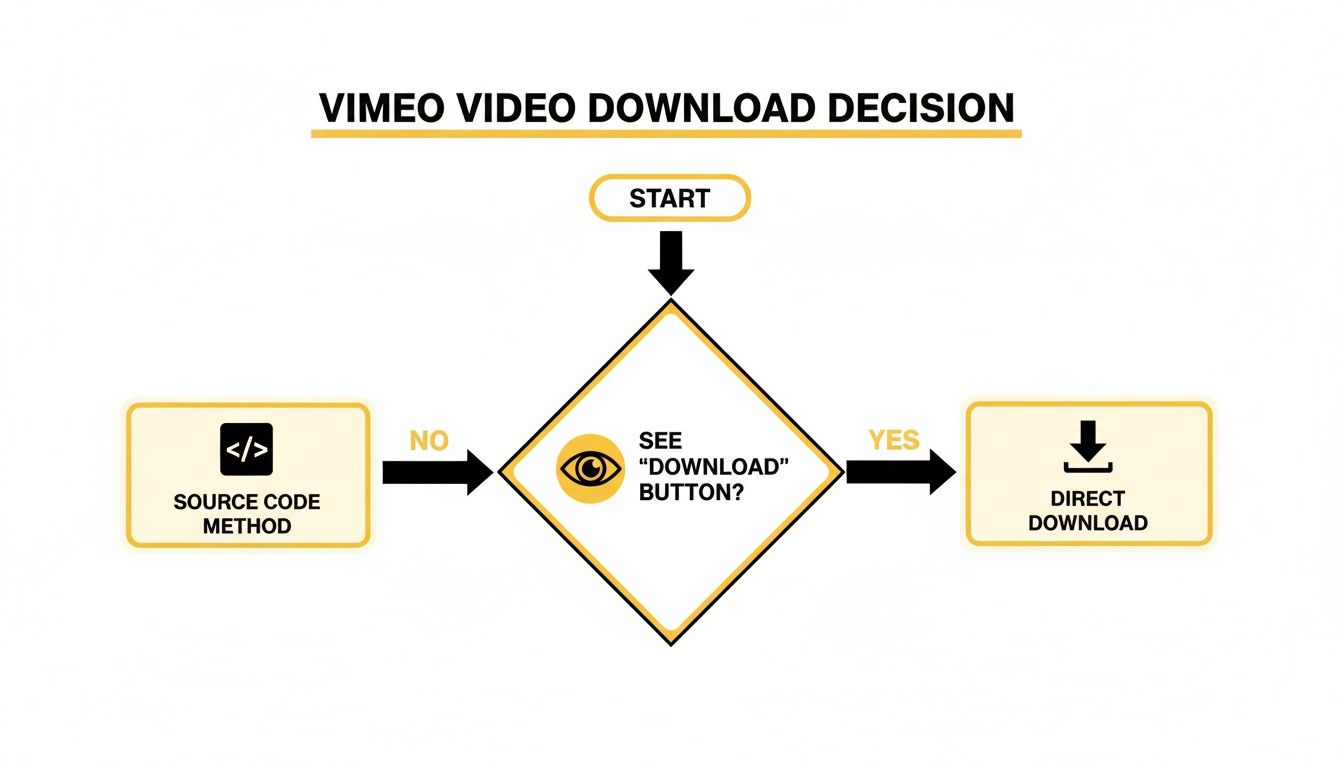
Basically, if you see that download button, your life is simple. If not, it's time to weigh the more advanced workarounds.
A Smarter Workflow for Creators
For many of us, the goal isn't just to download a video; it's to repurpose it. If your plan is to add captions, translate audio, or create a dub, downloading and then re-uploading to another tool is a clunky, time-consuming process.
A much better approach is to use a tool that can import the video directly from its URL. Platforms like TranslateMom let you simply paste a link to kick off a new project, skipping the download step completely. In the New Task screen, just paste a Vimeo URL into the Link Import field. This doesn't just save you time and hard drive space; it streamlines your entire localization workflow. And if you're often dealing with huge video files, our guide on how to reduce MP4 file size might be a lifesaver.
Using Vimeo's Official Download Feature
Let's start with the simplest and most reliable way to grab a video: Vimeo's built-in download function. This is the only method officially endorsed by the platform, which means you’re respecting the creator's wishes and staying within Vimeo’s terms of service. When you see it, it's your green light.
It's super straightforward. Just head to the video page and look right below the player for a Download button. If it’s there, the creator has given you the go-ahead. Clicking it will pop open a menu with all the different quality options they've made available.
Selecting Your Video Quality
You'll usually see a list of resolutions, from the pristine Original file to more compressed options like 1080p, 720p, or standard definition (SD). What you choose really comes down to what you need the video for.
Here’s a quick breakdown to help you decide:
- Original: This is the source file the creator uploaded. Pick this for the absolute best quality, perfect for editing or high-end presentations.
- 1080p (Full HD): My go-to for viewing on a large monitor or TV. It’s the sweet spot between great quality and a manageable file size.
- 720p (HD): Ideal for watching on smaller screens like a tablet or when you're trying to save a bit of storage space.
- SD (Standard Definition): The smallest file by far. It's handy for super-quick downloads or when video clarity isn't a huge deal.
Once you’ve made your pick, just click the download icon next to it. Your browser will take it from there, asking you where you want to save the file. Easy as that.
When the Download Button Is Missing
So, what if you get to the page and there's no download button in sight?
It's important to know this isn't a glitch. The visibility of that button is entirely up to the creator. If you don't see it, the uploader has intentionally turned the feature off, usually to protect their work. This is an option available to creators on paid plans like Pro, Business, or Premium.
But what if your goal is just to add subtitles, translate, or repurpose a video that doesn't have a download option? You don't always need to find a workaround. Sometimes, it's much easier to use a tool that can work directly with the video's URL.
For instance, with a platform like TranslateMom, you can actually skip the download step entirely. Just paste the Vimeo link into the New Task screen under Link Import. The app imports the video directly, letting you choose between Transcription, Translation, or Dubbing without ever having to save a local file. This direct-import method saves time and neatly sidesteps the whole issue of whether downloads are enabled or not.
Finding Video Files with Browser Developer Tools
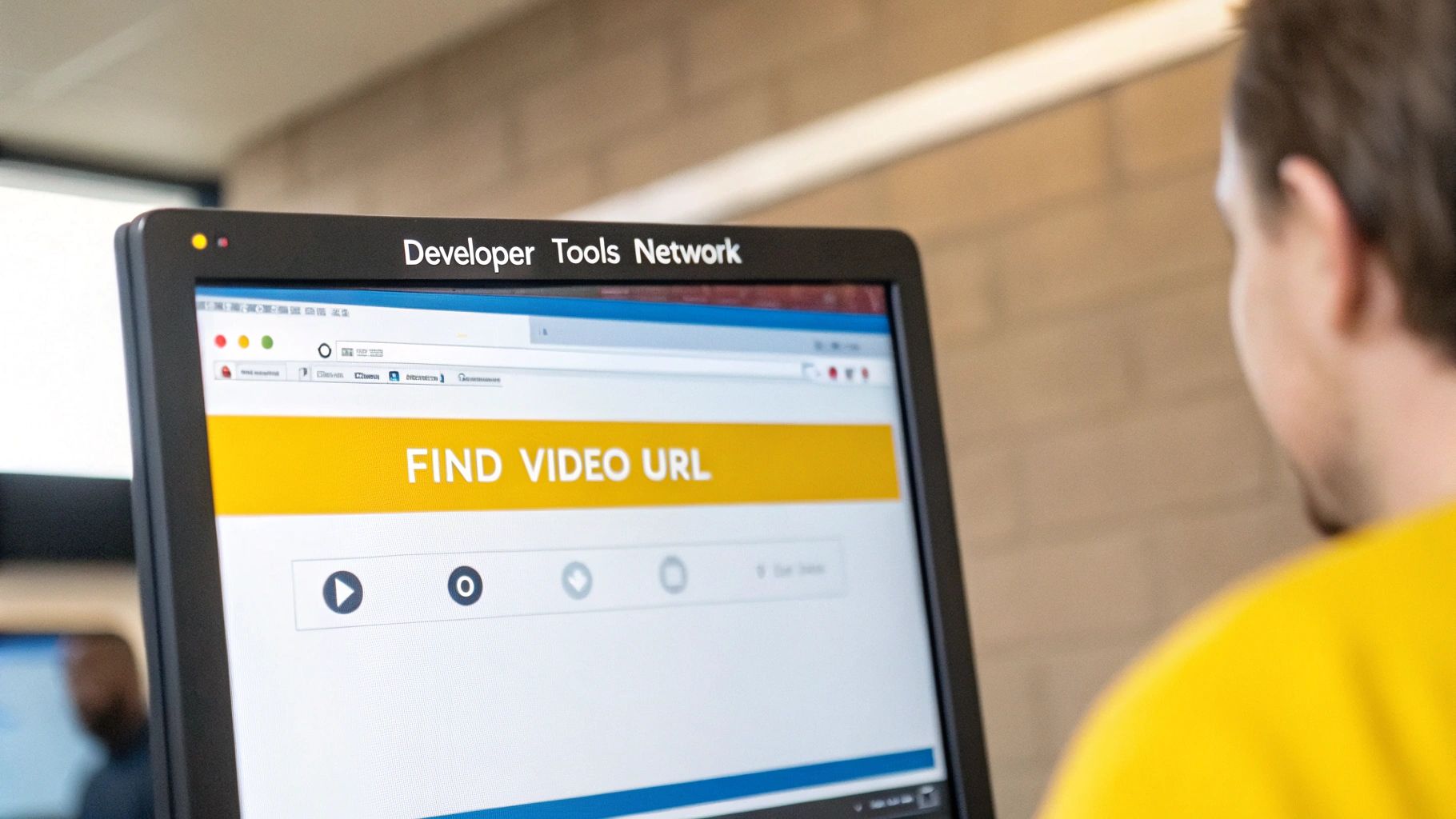
When the download button is nowhere to be found, you can roll up your sleeves and try a more technical approach. This involves digging into the developer tools built right into browsers like Chrome and Firefox to uncover the video's direct source file.
This is definitely an advanced trick, and it's no magic bullet. It usually won’t work on videos with tight privacy settings. Still, it's a fantastic skill for web developers, marketers, or anyone who has permission to use a video but can't find a simple download link.
Opening the Developer Tools
First things first, you need to open the "dev tools" on the page where the Vimeo video is embedded. You've got a couple of easy ways to do this.
- The Shortcut: Just hit Ctrl+Shift+I on a Windows machine or Cmd+Option+I on a Mac. It's the fastest way in.
- The Right-Click: You can also right-click anywhere on the webpage and choose "Inspect" or "Inspect Element" from the menu that pops up.
A new panel will appear, usually docked to the side or bottom of your browser. This is your browser's command centre, showing you all the behind-the-scenes action.
Navigating the Network Tab
With the developer tools open, look for a tab called Network. This tab is like a logbook, recording every single file the webpage requests—images, scripts, and most importantly for us, video files.
Click on the Network tab, then give the page a quick refresh. You can do this by hitting F5 or using Ctrl+R / Cmd+R. This step is crucial because it forces the tool to capture every request from the very beginning, including the video loading. You'll see the Network tab fill up with a long list of files.
Pro Tip: Don't get intimidated by that massive list of files! A webpage loads dozens, sometimes hundreds, of tiny assets. The trick is to filter through the noise to find what you're actually looking for.
Filtering to Find the Video File
To zero in on the video, use the filter bar at the top of the Network tab. Just type .mp4 or even just mp4. In many cases, this is all it takes to make the direct video file pop right up.
Sometimes, you might see files ending in .m3u8 followed by a stream of .ts files. This is a sign that the video is using a streaming protocol (HLS), which breaks it into small chunks. In these situations, downloading the video becomes a lot more complex and usually won't work with this method.
Once you spot a likely .mp4 file, right-click on it and choose "Open in new tab." This will open the raw video file in your browser. From there, you can simply right-click the video itself and select "Save video as..." to save it directly to your computer.
The core principles here—inspecting a page's assets to find a specific media file—are pretty universal. It's the same logic you'd use if you wanted to learn how to download images from websites for another project.
Choosing Reputable Third-Party Downloaders
So, what happens when Vimeo’s own download button is missing and the browser developer tools aren’t cutting it? Many people turn to third-party downloaders as the next logical step. These tools—either online apps or desktop software—promise an easy fix, but you need to approach them with a healthy dose of caution.
The truth is, a lot of these services live in a legal and ethical grey zone. Your number one priority has to be protecting your computer and your personal data. A "free" download just isn't worth a malware infection or having your privacy compromised. Learning to spot the red flags of a sketchy service is an essential skill if you're going this route.
Online Downloaders vs Desktop Software
You'll find two main flavours of these tools, and each comes with its own trade-offs.
- Online Web Apps: These are the simple "paste-a-link" websites. They’re convenient, no doubt, because there’s nothing to install. The catch? They're usually plastered with aggressive ads, sketchy pop-ups, and redirects to places you don't want to go.
- Desktop Software: These are actual programs you install on your machine. They often pack in more features like downloading entire playlists or converting formats. But the risk is higher. A malicious program can easily bundle adware, spyware, or other nasty surprises with its installation.
As a general rule, a well-regarded desktop app from a known developer is probably safer than a random online converter that’s drowning in ads. But for either option, you absolutely need to do your homework.
What to Look For in a Safe Downloader
Before you even think about pasting a URL or clicking an install button, run through a quick mental checklist. A trustworthy tool will usually tick most of these boxes. A shady one will set off alarm bells almost immediately.
Here’s what to keep an eye out for:
- A Clean Interface: Reputable websites and software look professional and are easy to navigate. If a site is a chaotic mess of flashing banners, pop-ups, or fake "You have a virus!" warnings, just close the tab. Seriously.
- Transparent Privacy Policy: A legitimate service will tell you what data it collects and why. If you can't find a clear privacy policy, that's a massive red flag.
- Positive User Reviews: Don't just trust the glowing testimonials on their homepage. Look for real, independent reviews on tech blogs, forums like Reddit, or sites like Trustpilot to see what the community is saying.
- No Forced Installations: An online downloader should never force you to install a browser extension or download an
.exefile just to grab a video. That's a classic bait-and-switch used to spread malware.
My best advice is to trust your gut. If a website feels off, looks unprofessional, or is pushing you to download something you didn't ask for, it's not worth the risk. Your goal is to get a video file, not a computer virus.
At the end of the day, third-party tools can be a solution when all else fails, but they should always be your last resort. Stick to the official methods whenever possible and be extremely careful if you have to venture into this territory.
A Smarter Workflow: Processing Videos Without Downloading
Let's be honest, half the time you want to download a Vimeo video, it's not just to have a copy sitting on your hard drive. You're probably looking to add subtitles, translate what's being said, or chop up some clips for social media.
The old way—downloading, editing, then re-uploading—is a total drag. It’s slow and eats up a ton of disk space.
There's a much better way to go about it that skips the download step completely. Modern tools built for this exact purpose, like TranslateMom, let you work with online videos directly. It's a game-changer if you need to get things done quickly and can't get past Vimeo's download restrictions.
The whole process becomes ridiculously simple. Instead of trying to find a working download button, you just grab the video's URL and you're good to go.
Importing and Processing Directly
Inside a tool like TranslateMom, you head over to the New Task screen. You’ll see a "Link Import" option, and all you have to do is paste the Vimeo video URL right there. The app does all the heavy lifting, pulling the video into the editor without a single file touching your computer.
Once it's in, the video is ready for you to work your magic. You can:
- Transcribe: Get accurate captions in the video's original language.
- Translate: Create subtitles for your video in over 100 different languages.
- Dub: Make a new AI-generated audio track in a completely different language.
This workflow is a lifesaver for editors and content creators. A recent 2025 survey from the Canadian Media Research Consortium actually found that 42% of Canadian video editors were trying to download Vimeo videos just to add subtitles. That really highlights the headache creators face when trying to reach audiences who speak different languages. You can dig into more stats about Vimeo’s global reach over on ElectroIQ.com.
By just importing a URL, you leapfrog all the download headaches and get right to the fun part—the creative work. Once inside the Studio editor, you can adjust timings on the waveform, customize subtitle styles, and even add karaoke-style animations where words highlight as they are spoken.
Finalizing Your Project
After you've finished up—whether that's editing captions, styling them, or generating new audio—you get a few flexible ways to export your work. You can either select Export Video to get a final video file with your subtitles permanently "burned in," ready to be posted anywhere, or you can just Download Subtitles.
Grabbing the captions as SRT or VTT files gives you a tiny, universal file that works in pretty much any video editor or can be uploaded alongside your video on other platforms. If your main goal is just getting a transcript, this method is worlds faster than doing it by hand. We've got a whole guide on how to efficiently turn video into a transcript if you want to explore that more.
Understanding the Legal and Ethical Rules
Before you even think about downloading, let’s get one thing straight: just because you can download a video, doesn't mean you should. Every single video on Vimeo belongs to its creator, and it's protected by copyright law and Vimeo's own Terms of Service.
The golden rule is pretty simple, really. You can only download a video if the creator has explicitly enabled it. You'll know they have if you see that official "Download" button right there on the video page. Using other tools to get around a creator's decision to disable downloads is a clear violation of Vimeo's policies and can easily land you in hot water for copyright infringement.
Navigating Different Scenarios
Of course, it's not always a straightforward yes or no. The right way to handle things often depends on the situation.
Your Own Content: No surprise here—you always have the right to download your own videos. It's a basic part of managing your own work on the platform.
Creative Commons: Some creators are happy to share their work under Creative Commons (CC) licenses. These often allow you to download their videos, but you have to play by their rules. That might mean giving them credit (CC BY) or not using the video for commercial projects (CC NC). Always check the specific license.
Fair Use/Fair Dealing: In some places, like Canada, the concept of "fair dealing" might let you use copyrighted material without permission for specific purposes like research, private study, or criticism. But this is a very murky legal area and definitely not a free pass to download anything you want.
At the end of the day, it all comes down to respecting the creator. If they didn't put a download button there, they made a conscious choice. The best and safest thing you can do is reach out and ask them directly for permission.
This respect for creators' rights is important for more than just downloading. It's also a big deal when you're working with things like subtitles. Knowing the difference between formats can make a big difference, which you can learn more about in our guide to closed captioning vs subtitles.
Common Questions About Downloading Vimeo Videos
Figuring out the do's and don'ts of downloading Vimeo videos can feel a bit murky. Let's clear things up with some straightforward answers to the most common questions.
Is It Legal to Download Any Video from Vimeo?
The short answer is no. You can only legally and ethically download a video if the creator has deliberately turned on the download option or given you their express permission.
Always assume a video is copyrighted. Using sketchy third-party tools to get around a creator's settings isn't just a violation of Vimeo's terms of service—it can also be straight-up copyright infringement.
Why Is the Download Button Missing?
If you don't see a download button, it's not a glitch. The video's owner has made a conscious choice to disable it.
Creators on paid plans have the ability to turn off downloads to protect their work. It’s a feature designed to give them control, so always respect their decision.
If your goal is just to add subtitles or translate a video where downloads are disabled, you've got better options. Instead of trying to find a workaround, you can use a tool like TranslateMom, which lets you import a video using just its URL. This way, you can work on the content without ever having to download the file, respecting the creator's wishes while still getting your project done.
Can I Download a Private Video?
You can only download a private or password-protected video if two conditions are met: you have legitimate access (you're the owner or have the password) and the owner has enabled the download setting for that specific video.
Using external software to bypass privacy settings and grab a video you're not supposed to have is a serious violation of Vimeo's platform rules and a major invasion of the creator's privacy.
Ready to streamline your video localization workflow? With TranslateMom, you can import videos directly from Vimeo, YouTube, and other platforms to add subtitles, translations, and AI dubbing in seconds. Try TranslateMom for free and start reaching a global audience today.