If you’ve ever wanted to translate your French content into English audio, you’re no longer stuck with just adding text captions. Thanks to modern AI, you can now generate high-quality, natural-sounding voiceovers. This process, often called AI dubbing, is becoming the go-to for creators on YouTube and TikTok who want to offer a much more immersive experience for their audience.
Honestly, it's the new standard for anyone serious about connecting with a broader, bilingual audience.
Why Audio Translation Is The New Standard
Let's face it: subtitles just aren't enough anymore. They’re helpful, for sure, but they force your viewers to split their attention between reading text and watching what's happening on screen.
High-quality audio translation fixes this problem completely. By delivering your message directly in the viewer's native language, you create a seamless and far more engaging experience. This is especially true for global audiences who genuinely prefer listening over reading.
For businesses, educators, and influencers, this is a massive opportunity. An English-dubbed version of your French video can literally double its potential reach overnight, breaking down language barriers and making your content instantly more inclusive.
The Rise of Bilingual Content Demands
This need for effective audio translation is especially strong in bilingual regions like Canada. Back in 2021, English-French bilingualism hit an all-time high of 18.0%. That's nearly 6.6 million Canadians who can comfortably switch between both official languages.
This isn't just a statistic; it points to a huge and growing audience that moves fluidly between French and English content, creating a real demand for better translation tools.
This is where AI-powered platforms are really changing the game. They give creators the power to:
- Generate surprisingly natural-sounding voiceovers in a ton of different languages.
- Keep the original speaker's tone and emotion intact.
- Slash the time and money you'd normally spend on traditional studio dubbing.
By providing an audio track in your viewer's language, you're not just translating words—you're translating the entire viewing experience. That deeper connection is what builds real trust and loyalty with an audience.
For any creator looking to grow their influence, figuring out how an AI video translator can automate this whole process is a game-changer. It takes a piece of content made for a local audience and turns it into a global asset, ready to be discovered by millions of new viewers. The conversation has shifted from basic accessibility to creating a genuinely native experience for everyone, no matter what language they speak.
Alright, let's get your first French-to-English audio project off the ground.
Getting this initial setup right is probably the most critical part of the whole process. Nailing it now means less headache and cleanup later when you're in the weeds of editing. Think of it as laying a solid foundation—it makes everything that follows smoother and faster.
The first thing we need to do is get your French video or audio file into a tool built for the job. With a platform like TranslateMom, they’ve made this part pretty painless, giving you a couple of easy ways to get your media loaded up.
Getting Your Media Into the Workspace
So, how do you actually import your file? It really just depends on where your French content is living right now.
- File Upload: Got the file on your computer? Perfect. If you have the raw video file—maybe an export from Premiere Pro or just a clip straight from your camera—you can literally just drag and drop it into the browser. Most good platforms, including TranslateMom, handle hefty files up to 5GB, so your high-res 4K footage shouldn't be a problem.
- Link Import: Is it already online? Even easier. For content that's already on platforms like YouTube, TikTok, or X (what we used to call Twitter), just grab the URL and paste it in. The tool will fetch the video for you, saving you the annoying step of having to download it first and then re-upload it.
Pro Tip: When you’re on the "New Task" screen in TranslateMom, just hit the
Fkey. It's a neat little keyboard shortcut that pops open the file picker instantly. A small thing, but it definitely speeds things up.
Setting Up Your Project for Dubbing
Once your video is loaded, you need to give the software its instructions. This is where you tell it exactly what you want it to do—defining the languages and, crucially, the specific service you need.
First, you’ll set the Source Language to French. This lets the AI know what language to listen for when it starts transcribing. Easy enough.
Next, choose English as your Target Language.
Now for the most important part: you have to select the right service. In TranslateMom, you'll likely see a few options: Transcription (for same-language captions), Translation (for subtitles in a new language), and Dubbing. For our goal, you need to find and select the Dubbing service. This is the key. Choosing 'Dubbing' tells the tool to go beyond just text and actually generate a brand-new AI audio track in English.
Get these settings right, and you're perfectly prepped for a clean, accurate audio translation. If you're still weighing your options on which tool to use, our guide on the best audio translation tool in 2025 breaks down some of the top contenders.
Perfecting Your Translation and Audio Sync
Alright, once you've uploaded your file and set your languages, you land in the editing workspace. This is where the real magic happens. It’s less about automation now and more about your creative touch, turning that initial AI pass into something polished and professional.
I've spent a lot of time in tools like the TranslateMom Studio, and I can tell you a great editor is what separates a decent translation from a fantastic one. This is where you’ll fine-tune everything to translate French to English with audio that feels completely natural.
To get started, the process is pretty straightforward—just upload, configure, and let the AI do its initial dub.
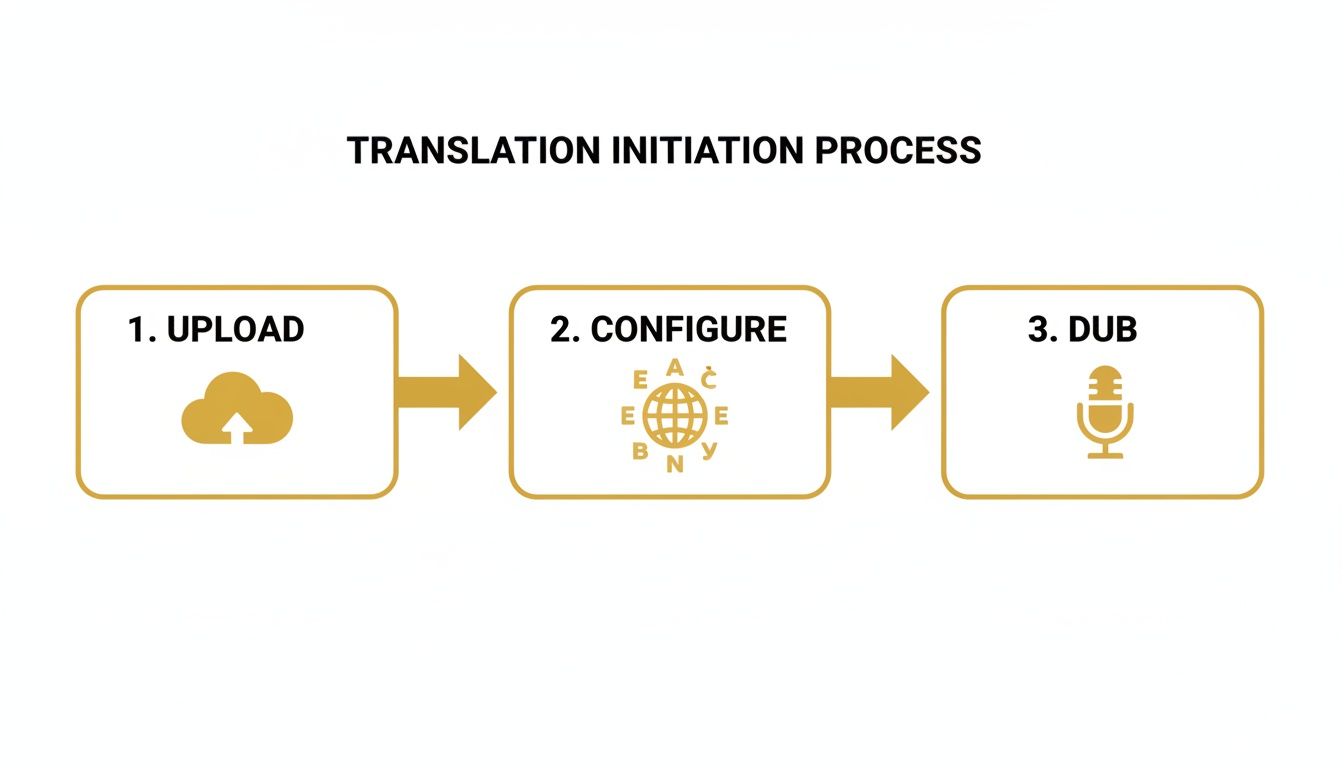
This simple workflow gets your project teed up, bringing you right into the editor where you can start refining.
To give you a clearer picture of the workflow inside the platform, here's a quick summary of the key stages.
TranslateMom Workflow At A Glance
| Stage | Key Action | Pro Tip |
|---|---|---|
| Upload & Configure | Import your French audio/video file and select English as the target language. | Have your file ready in a common format like MP4 or MP3 for the fastest import. |
| Initial Translation | The AI generates a full English transcript and a preliminary audio dub. | Listen to the first pass to identify any major pronunciation or phrasing issues upfront. |
| Text Refinement | Edit the English text for accuracy, nuance, and natural flow using the Split View. | Focus on idioms and cultural references—this is where a human touch makes the biggest difference. |
| Audio Syncing | Adjust subtitle and audio timings using the visual waveform to match the on-screen action perfectly. | Look for long pauses in the waveform. You can often tighten these up for better pacing. |
| Final Export | Generate your final video file with the new English audio track and/or subtitles burned in. | Always do one final quality check on the exported file before publishing it anywhere. |
This process is designed to be intuitive, moving you from the raw material to a finished, dubbed video with just a few focused steps.
Navigating The Editor Workspace
The core of any good translation tool is its editor. In TranslateMom, this is the "Studio Workspace," and it’s smartly designed. You’ve got the video preview on one side, showing you exactly what your final output will look like—subtitles, branding, and all.
On the other side, you have the subtitle editor, which is basically your control panel. It lists every line of dialogue. The best part? When you click on a line to edit it, the video player automatically pauses. No more frantic back-and-forth trying to stop the video at the right spot.
This kind of precision is a big deal here in Canada. With over 2.5 million young Canadians studying French or English as a second language, the appetite for quality bilingual content is massive. We've seen a 41.3% jump in French immersion enrolment outside Quebec between 2010 and 2021 alone, which is fuelling a huge demand on platforms like YouTube and TikTok. If you're curious about the numbers, you can dig into the statistics on official languages in Canada.
Side-by-Side Text Refinement
Let's be real: no AI translation is perfect right out of the box. That’s why manual editing is non-negotiable, especially for things like idioms, cultural jokes, or industry-specific jargon. This is where a Split View feature, like the one in TranslateMom's editor, becomes your best friend.
It’s a game-changer. You see the original French transcript right next to the generated English one. This side-by-side view makes it incredibly easy to:
- Spot-check the context and make sure the original meaning is intact.
- Fix clunky phrasing that sounds like it was written by a robot.
- Double-check that names, locations, and technical terms carried over correctly.
Comparing the source and target text directly helps you make edits that respect the original creator's voice while making it sound perfect for a new audience.
The goal isn't just a literal translation. It’s about capturing the spirit of what's being said—the emotion, the intent. You want the English version to feel just as authentic as the French original.
Mastering The Audio Waveform For Perfect Sync
Now for my favourite part: the visual audio waveform. This is easily the most powerful tool for nailing your audio sync. It’s a graph of your audio track that sits right alongside your subtitles, showing you exactly where words are spoken (the peaks) and where there’s silence (the flat lines).
Instead of just guessing the timing, you can literally see the audio. In TranslateMom, you just click and drag the start and end points of each subtitle to line up perfectly with the speaker’s voice on the waveform.
See a long, awkward pause in the waveform? You can tighten up the timing so the next line of audio starts right when the speaker does. This level of control is what ensures your AI dub and your subtitles are locked in sync with the video. It’s the secret to a seamless, professional-looking final product.
Adding Professional Polish To Your Video
Once you've nailed the French-to-English audio translation, it's time to take your project from just "done" to "dazzling." This is where you add the professional styling and branding that makes your content look polished and holds your audience's attention.
Some of the more advanced platforms, like TranslateMom, give you a full "Studio" environment to handle exactly this. Once you're in the editor, you’ll find a dedicated Style tab. This is your command centre for controlling the entire look and feel of your subtitles in real-time.
You can tweak everything—font family, size, text colour, outlines, shadows, you name it. The best part is that every change shows up instantly on the video player, so you see exactly what your audience will see. No more exporting just to check a tiny change.
Creating Dynamic Karaoke Captions
Want to make your subtitles pop, especially on social media? Try "Karaoke" style captions. It's that slick effect where words are highlighted in a new colour right as they're spoken. It’s incredibly engaging and keeps the viewer locked in.
Inside TranslateMom's Style tab, you can flick this on with a preset or manually configure the animation. The app’s smart sync tech takes care of the hard part, automatically tracking the word timings to make sure the highlight lines up perfectly with the new English audio. It’s a total game-changer for short-form video on TikTok and Instagram where every second of watch time counts.
For a truly polished final product, you might even consider re-editing your translated video for Instagram to make the most of platform-specific features.
Enhancing Learning With Dual Language Mode
If you're creating educational or language-learning content, showing both the original French and the translated English subtitles at the same time is a huge win. This "Dual Language Mode" lets your viewers directly compare the two, which is fantastic for reinforcing what they're learning.
In TranslateMom, it's a simple option you can enable. It stacks the source and target languages right on top of each other in the video frame, giving bilingual viewers or students a powerful reference tool that adds a ton of value.
Key Takeaway: The goal here is to move past a basic translation. Adding visual flair like karaoke effects or dual-language subtitles creates a more professional, accessible experience that serves different audiences and their needs.
Power User Shortcuts For Faster Editing
Getting fast with any editor means learning the keyboard shortcuts. Seriously, mastering just a few commands can slice your editing time down, letting you make quick adjustments without ever reaching for your mouse. And remember, polishing the visuals is only half the battle; cleaning up the sound is just as important. Check out our guide on how to remove background noise from audio for some pro tips.
Here are a few essential shortcuts to get you started in the TranslateMom Studio:
| Key | Action |
|---|---|
| Space | Play or Pause the video player. |
| + / - | Quickly increase or decrease the font size. |
| [ / ] | Move the currently selected subtitle row up or down. |
| Esc | Close any open modals or overlays. |
By weaving these advanced features and shortcuts into your workflow, you can add a layer of professionalism that makes your translated content truly stand out from the crowd.
Exporting Your Final Translated Content
You've put in the work—the text is polished, the audio sync is spot-on, and now it's time for the final, most satisfying step: exporting your masterpiece. This is where you decide exactly how your audience will see and hear your newly translated video.
Most modern tools, like TranslateMom, give you a couple of ways to get this done. The path you choose really comes down to your end goal. Are you looking for a ready-to-share video file, or do you need the raw materials for a bigger editing project?
Burn-In for Instant Sharing
The simplest and most popular route is to "Burn-in" your subtitles and export a fresh video file. Think of it like baking a cake—the ingredients (your video, the new English audio, and the styled captions) are permanently combined.
What you get is a single, self-contained MP4 file, ready for a one-click upload to YouTube, TikTok, Instagram, or anywhere else. Your viewers won't have to fumble with turning on captions; they're part of the video itself. This guarantees everyone gets the same accessible experience.
This method is perfect if you're a:
- Social media creator needing a grab-and-go file that just works.
- Marketer who needs to make sure branded captions and logos are always visible.
- Educator providing essential subtitles that students can't turn off.
Download Subtitle Files for Professional Workflows
On the other hand, sometimes you just need the text. If you’re a professional video editor living in software like Adobe Premiere Pro or Final Cut, this is your go-to option.
TranslateMom lets you grab just the subtitle files in all the standard formats—SRT, VTT, and others. This gives you total flexibility to drop the timed captions into a complex project, tweak them further, or integrate them with a custom video player.
The demand for high-quality translation tools is exploding, especially here in Canada. As of March 2033, a whopping 40.7% of core public administration jobs required bilingual skills, showing just how critical clear French-to-English communication has become. For creators, this means having tools that nail both the audio and text isn't just nice—it's essential. You can dig into more stats on bilingualism in the Canadian public service if you're curious.
One last thing before you hit that export button: do a final sanity check. Make sure your latest edits are saved (cloud-based tools like TranslateMom usually do this automatically, but it never hurts to double-check). A quick scrub through the timeline ensures the audio sync is perfect and the captions look just right.
This quick final review is what separates the pros from the amateurs. It ensures the polished video you see in the editor is exactly what your audience will enjoy.
Got Questions About Audio Translation? We've Got Answers
Diving into the world of audio translation for the first time? It’s natural to have a few questions, especially when you're trying to translate French to English with audio that actually sounds good. Let's tackle some of the most common ones I hear from creators.
How Good Is AI Audio Dubbing, Really?
Honestly, today's AI dubbing is surprisingly good, especially with high-quality models. But here’s the reality: the output is only as good as the input. If your original French audio is crystal clear with a distinct speaker, you’ll get a fantastic result. Throw in a bunch of background noise or a very thick accent, and the AI will struggle.
For that professional polish, a quick human check is non-negotiable. This is why tools like TranslateMom are built for collaboration between AI and a human editor. The AI does the heavy lifting, but the "Studio" workspace lets you step in. I love using the Split View to put the original French text right next to the AI’s English translation. It makes it incredibly easy to spot and fix any tricky phrasing or specific jargon the AI might have missed.
Can I Tweak The Timing of The Dubbed Audio?
You can't directly edit the sound file the AI generates, but you have full control over something even better: the subtitles that guide it. The timing of your dubbed audio is tied directly to the start and end times of each subtitle line.
This is where having a visual audio waveform is a game-changer. Inside an editor like TranslateMom's Studio, you can literally see the spoken words as peaks in the audio. All you have to do is drag the handles of each English subtitle to match up perfectly with the original French speaker's phrases on the waveform. It’s a simple way to resync the entire performance, making sure every pause and bit of cadence feels natural in the new English track.
What’s The Best Format For Social Media?
If you’re posting on YouTube, Instagram, or TikTok, you’ll want to "Burn-in" your subtitles and audio. It’s a simple export option that creates a brand new MP4 file with the English audio and your styled captions permanently embedded right into the video.
Why is this my go-to recommendation? Two huge reasons:
- It’s 100% Accessible: Nobody has to manually turn on captions. They’re just there, which is a massive win for anyone watching with the sound off (which is a lot of people!).
- Your Branding Stays Intact: All that work you did styling your captions, adding karaoke effects, or placing a logo? It’s all baked into the video. Your content will look exactly how you designed it, no matter where it's viewed.
If you want to keep up with the latest trends and get more tips on audio translation, I often check out industry resources like Parakeet AI's blog. Staying in the loop helps you get the most out of these powerful tools.
Ready to get your French content in front of a global audience? With TranslateMom, you can translate, subtitle, and dub your videos with natural-sounding AI voices in just a few minutes. Start your first project for free today!